
Notifications
On this page
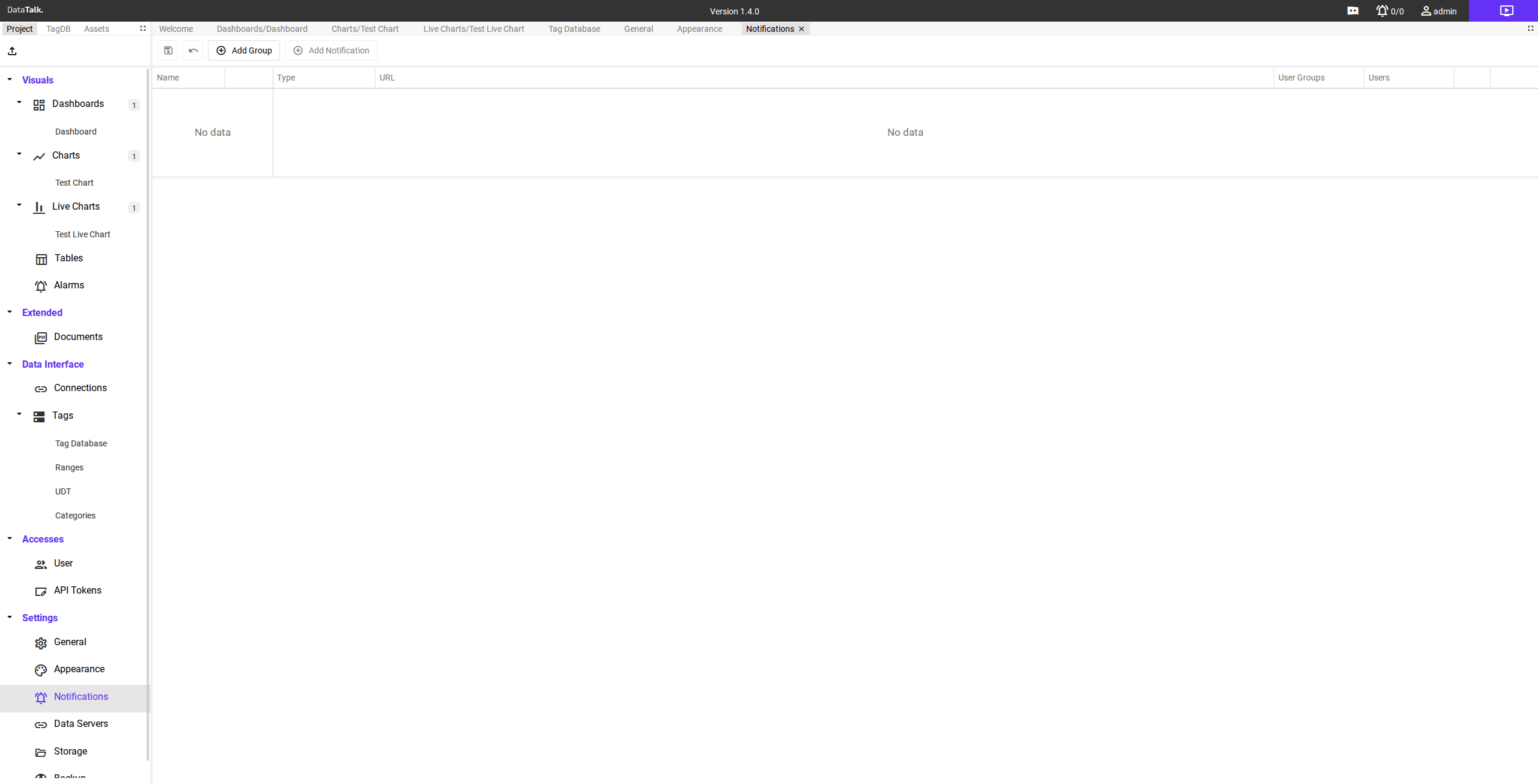
The Notifications section in DataTalk allows you to create, configure, and test notification groups to ensure effective and reliable alarm communication. This is essential for managing alerts across different channels and teams, tailoring notifications to specific needs.
Key Features
Create a Notification Group
Start by creating a Group to act as the recipient of various notifications. Groups allow you to organize and manage notifications based on different criteria, such as emergency levels or team responsibilities.
A new editable row appears in the left panel.
Type a descriptive name that identifies the purpose or audience of this group — for example Production Alarms, Maintenance Team, or Night Shift.
Click Save in the toolbar to persist the new group.
Define Notification Types
Assign specific notification types to a group. You can add multiple notification types to a single group for flexibility in alert delivery.
Supported notification types:
SMS USB / Integrated modem — sends SMS via a locally connected LTE USB modem, no internet SMS gateway required.
Discord — sends alerts to a Discord channel via a webhook URL.
Slack — sends alerts to a Slack channel via an incoming webhook.
Telegram — sends alerts to a Telegram bot conversation.
Email (SMTP) — sends email via your own SMTP server.
WhatsApp — sends alerts via the WhatsApp Business API (Meta Business account required).
SMS — sends SMS via an internet-based SMS gateway (Twilio, SMS Manager, etc.).
Reddit — posts alerts to a Reddit channel.
See Notification Channels for configuration details, URL templates, and screenshots for each service.
Set Up Notification URLs
After selecting a notification type, fill in the URL field with the Apprise connection URL for that service. The URL encodes all credentials and routing in a single string.
Examples by service type:
Discord — paste the webhook URL from your Discord channel settings. You can append channel names or custom tags such as @everyone for targeted alerts.
Email (SMTP) — fill the template with your SMTP server, port, credentials, and recipient address:
mailtos://{smtp_server}:{port}?user={user_email}&pass={password}&smtp={smtp_server}&from={user_email}&to={recipient_email}&mode=sslTelegram — use the bot token from @BotFather and the numeric chat ID:
tgram://bot_token/chat_idSMS (Twilio) — use your Twilio Account SID, Auth Token, and phone numbers:
twilio://{account_sid}:{auth_token}@{from_phone_number}/{to_phone_number}Each service has unique configuration requirements. See Notification Channels for detailed per-service guides.
Test Notifications
Use the Test button to validate the configuration and URL before deploying. Testing ensures notifications are correctly set up and will be triggered when an alarm occurs.
Always use the Test button after entering a new URL. It sends a test message to the configured service and confirms the connection is working. This prevents missed alarms from misconfigured channels.
Benefits
Customizable Alerts — tailor notifications to specific groups and services for precise alarm communication.
Multi-Channel Support — notify teams across various platforms for maximum reach.
Reliability — test setups before deployment to prevent missed alarms and ensure smooth operation.
Flexibility — combine multiple notification types within a single group for comprehensive alert delivery.
Define your notification groups first, then reference them by name when setting up alarm limits in Tag Database → Limits.