
Appearance
On this page
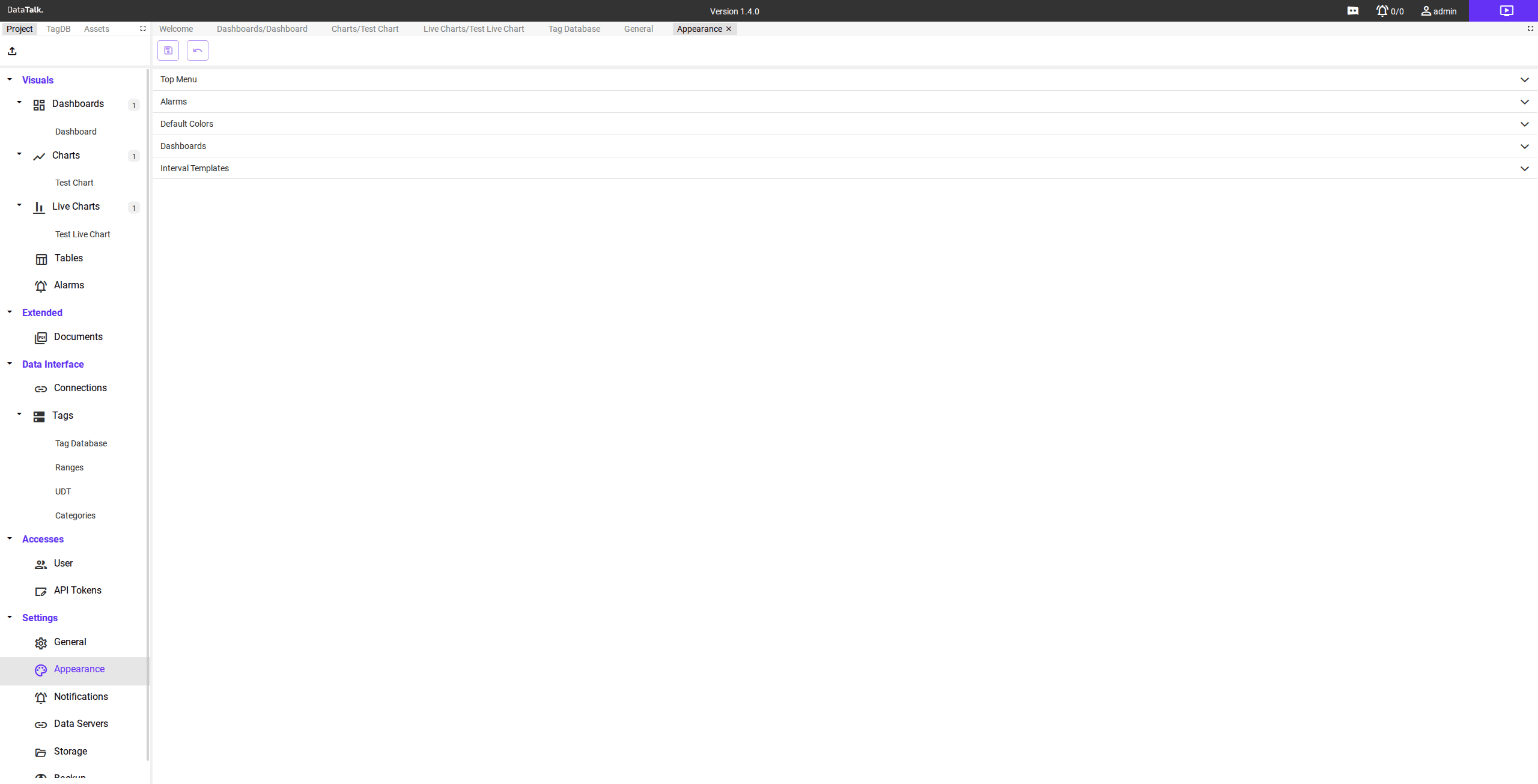
The Appearance settings page controls the visual behavior of the operator interface. Settings are grouped into five collapsible sections: Top Menu, Alarms, Default Colors, Dashboards, and Interval Templates.
Top Menu
Controls which items appear in the top navigation bar of the operator interface. Enable or disable individual menu entries to tailor the navigation to your operators’ workflows.
Alarms
Visual settings that affect how alarms are displayed in the operator interface — such as how alarm states are presented in the alarm list and whether notification indicators are shown.
Default Colors
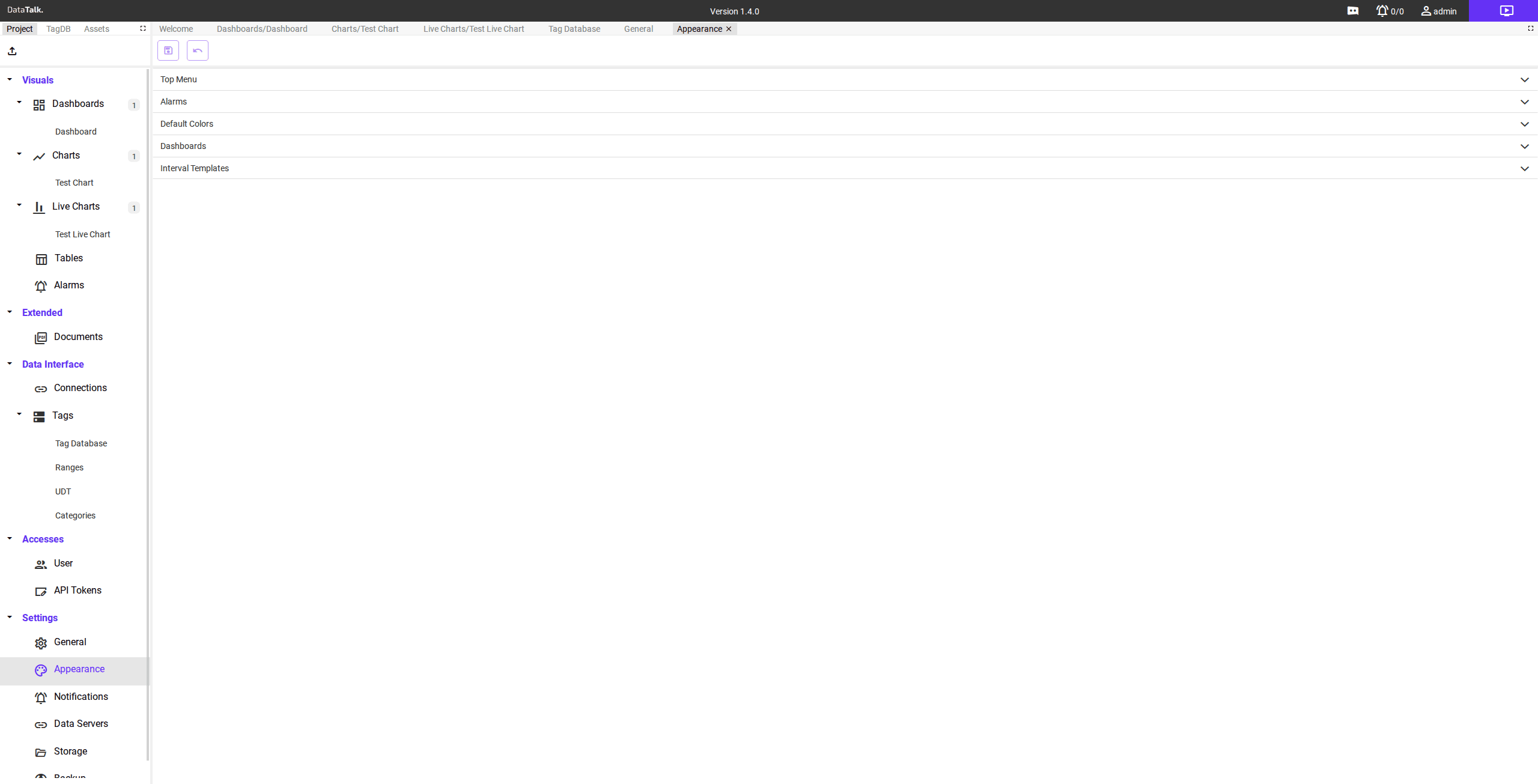
Defines the color swatches used throughout the interface to represent alarm threshold levels and boolean tag states. Consistent color coding lets operators read system status at a glance.
Limit colors — applied when a tag value crosses a defined threshold boundary:
Max — color shown when a value exceeds the maximum defined threshold.
HH (High High) — color for the most critical high-side alarm level.
H (High) — color for a high-side warning level.
Nominal — color indicating the value is within the normal operating range.
L (Low) — color for a low-side warning level.
LL (Low Low) — color for the most critical low-side alarm level.
Min — color shown when a value falls below the minimum defined threshold.
Boolean colors — applied to tags that represent binary states:
True — color shown when a boolean tag is in the true (on/active) state.
False — color shown when a boolean tag is in the false (off/inactive) state.
Click any color swatch to open the color picker and choose a replacement color.
Dashboards
Controls dashboard layout and appearance settings — for example size constraints and breakpoints that determine how dashboard panels are rendered at different screen resolutions.
Interval Templates
Defines reusable time interval presets that can be referenced consistently across the project. Define an interval once here and apply it wherever a time range selector is needed — charts, alarm views, trend displays. Changing a template value propagates to every location that references it.