
Users
Manage user accounts with role-based group membership, two-factor authentication, per-user language preference, and configurable HMI startup screens.
On this page
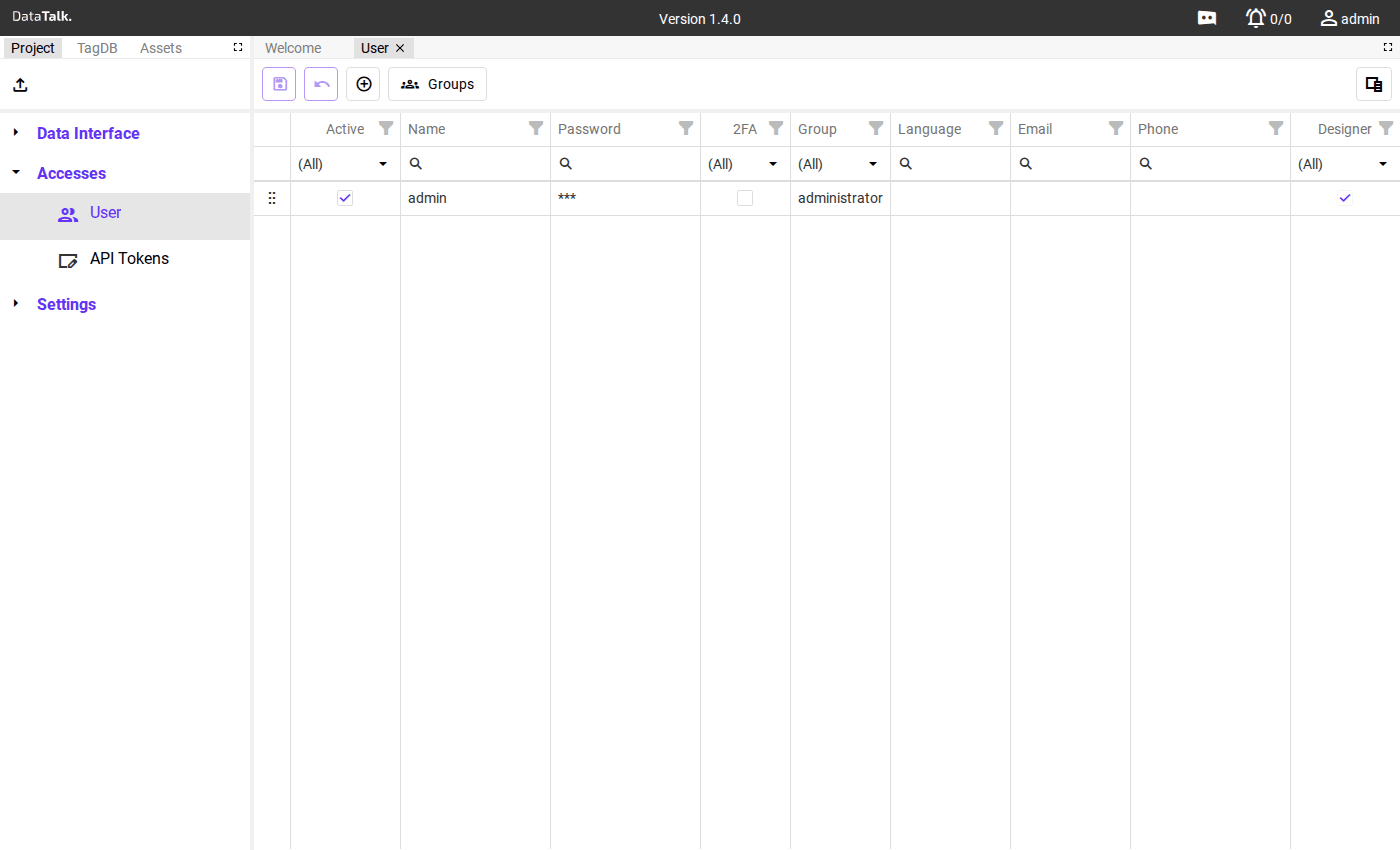
The Users page lets administrators manage who can access the gateway and what they are allowed to do. It shows a grid of all user accounts and a Groups panel on the right side. Together they define the complete access control model for the project.
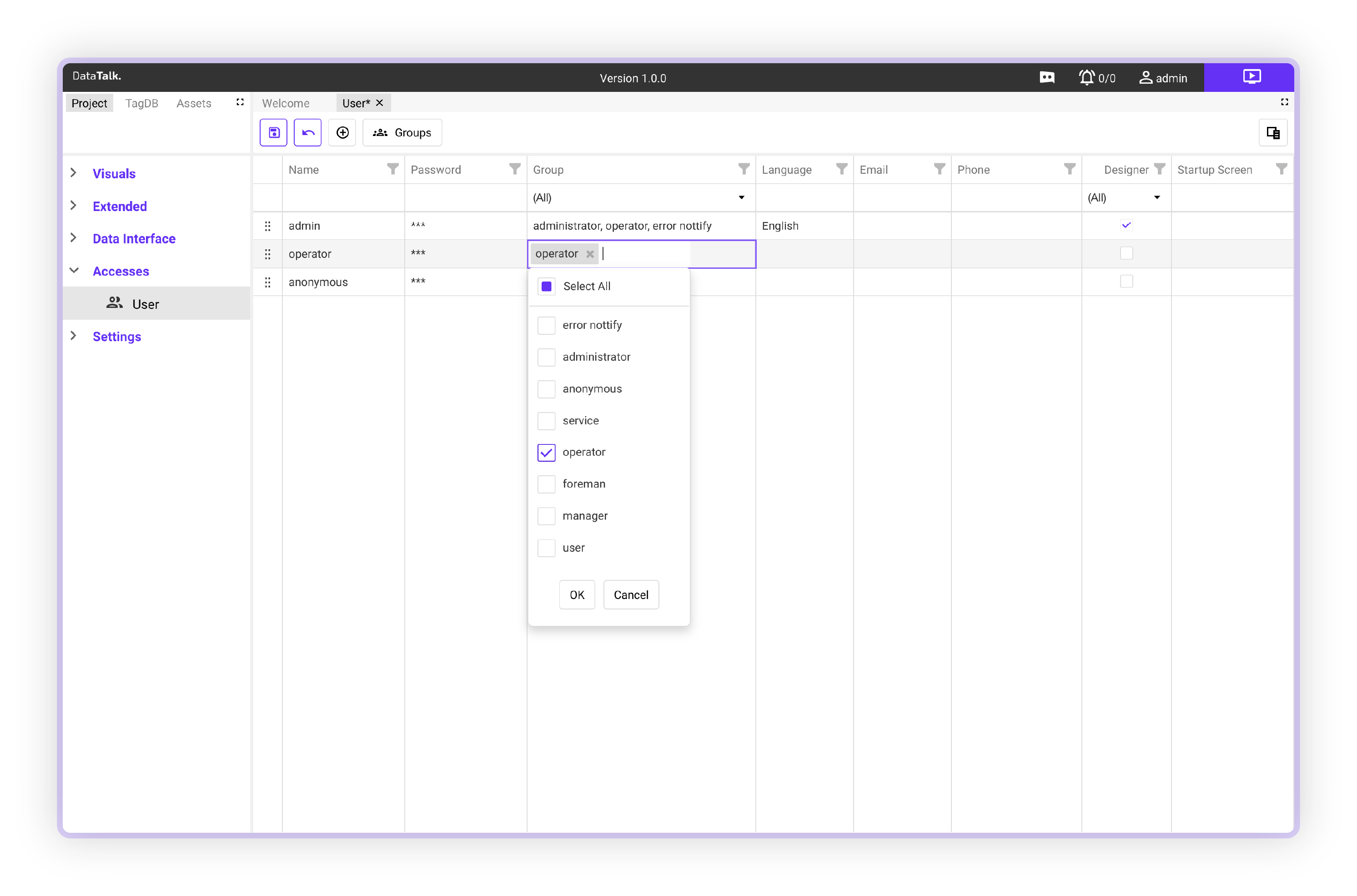
User fields
Identity and credentials
These fields control whether the user can log in and how strongly their identity is verified.
Active — Enable or disable the account. Disable a user instead of deleting them when you want to suspend access temporarily or preserve their history (audit trail, alarm acknowledgements) — deleted accounts cannot be recovered.
Name — Login username; must be unique within the project.
Password — Stored as a cryptographic hash, never displayed. An administrator can reset it at any time without knowing the current value.
2FA — Two-factor authentication using TOTP (time-based one-time passwords). When enabled, the user must enter a 6-digit code from an authenticator app (Google Authenticator, Authy) on every login in addition to their password. Enable for any account with write access or administrator privileges.
Role and access
These fields determine what the user can see and do after logging in.
Group — The permission group this user belongs to. This is the most important field on the account — it controls which pages, HMI screens, tag categories, and write operations are accessible. If a user can see or do something they shouldn’t, this is where to look first.
Designer — Grants access to the HMI project designer. Enable only for engineering staff who need to build or edit HMI views; operators and supervisors do not need this.
Experience and notifications
These fields customize the user’s interface and how they receive alerts.
Language — Interface language for this individual user, overriding the project default. Set this per user so each person sees labels and menus in their preferred language without affecting anyone else.
Email — Used for alarm notification emails. Set this for any user who should receive alarm alerts in their inbox.
Phone — Phone number for SMS-based alarm notifications. Set this for users who need alarm alerts on their mobile device.
Startup Screen — The HMI view that opens automatically when this user logs in. Set this for operators so they land directly on their workstation overview after login — no time spent navigating to the right view each shift.
Options
Each row in the user grid has a per-row Options menu with actions to edit the account, reset the password, or delete the user.
Groups
Groups define permission sets that control what users can see and do. Users can be grouped by role — for example a maintenance group — and alarm notifications or alerts can be directed to the entire group. This ensures the right people are notified when critical events occur, such as a machine entering an error state.
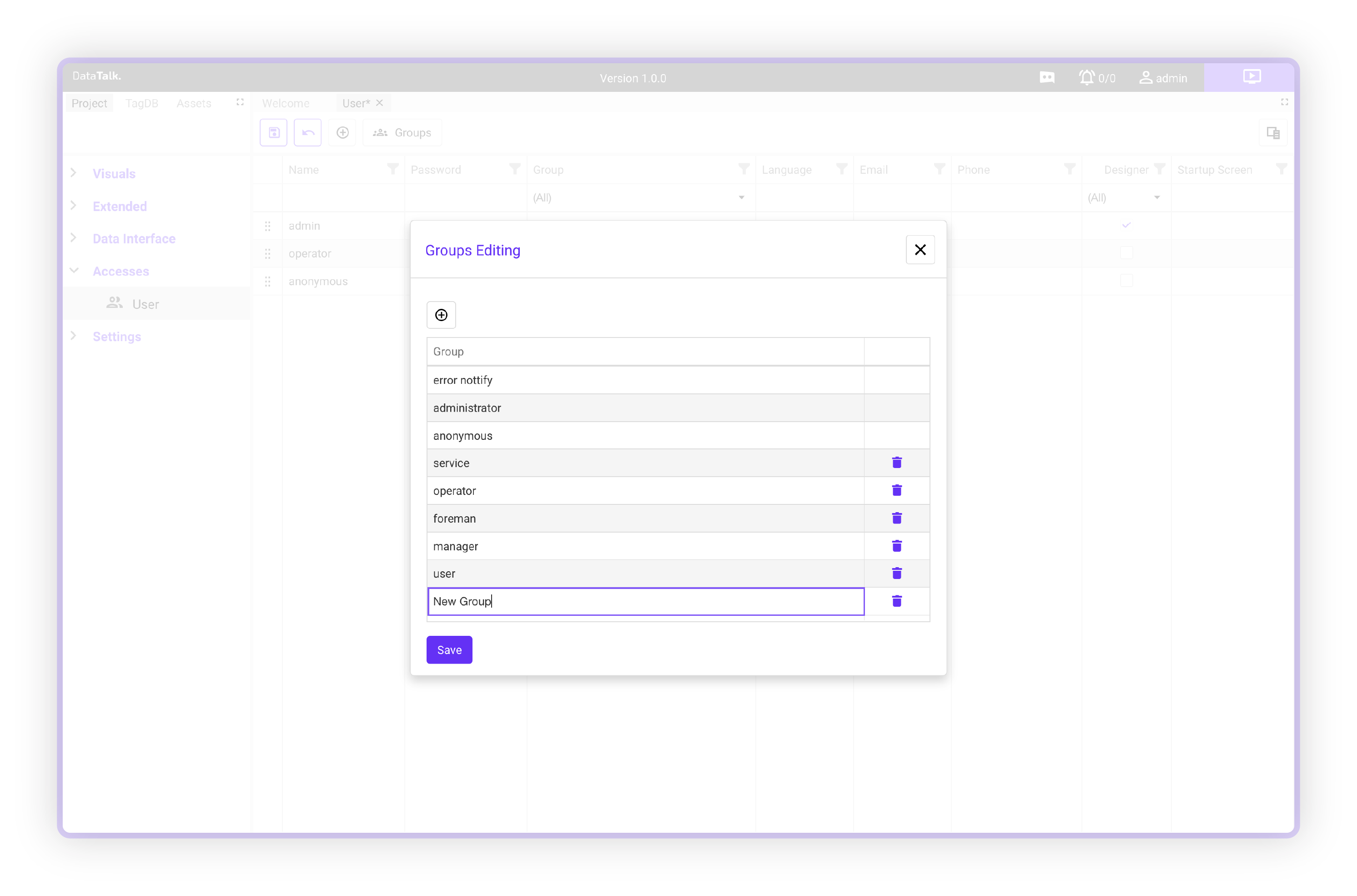
A group controls:
- Which sections of the application are visible
- Which HMI views and screens are accessible
- Whether users can write to tags (operator control) or only read values
- Which tag categories can be accessed
Create groups that match the roles in your organization — for example Administrator, Supervisor, Operator, ReadOnly, Maintenance. Assign users to the appropriate group when creating their account.
Adding a user
Opens the user creation form.
Enter a username and initial password. Assign the user to a Group — this is the most important setting as it determines everything the user can access.
Add an email address for alarm notifications. Set a Startup Screen if the user should land on a specific HMI view at login. Enable 2FA for accounts requiring stronger security — particularly for any account with write access or administrator privileges.
The user can log in immediately after saving.
A built-in admin account is created during installation and cannot be deleted. Change its default password during initial setup and enable 2FA before connecting the gateway to any network.
Configure a Startup Screen for each operator account so they land directly on their workstation overview after login — no time spent navigating to the right view.