
Categories
Create tag category labels to classify tags by subsystem or topic, enabling filtering in the Tag Database and HMI views.
On this page
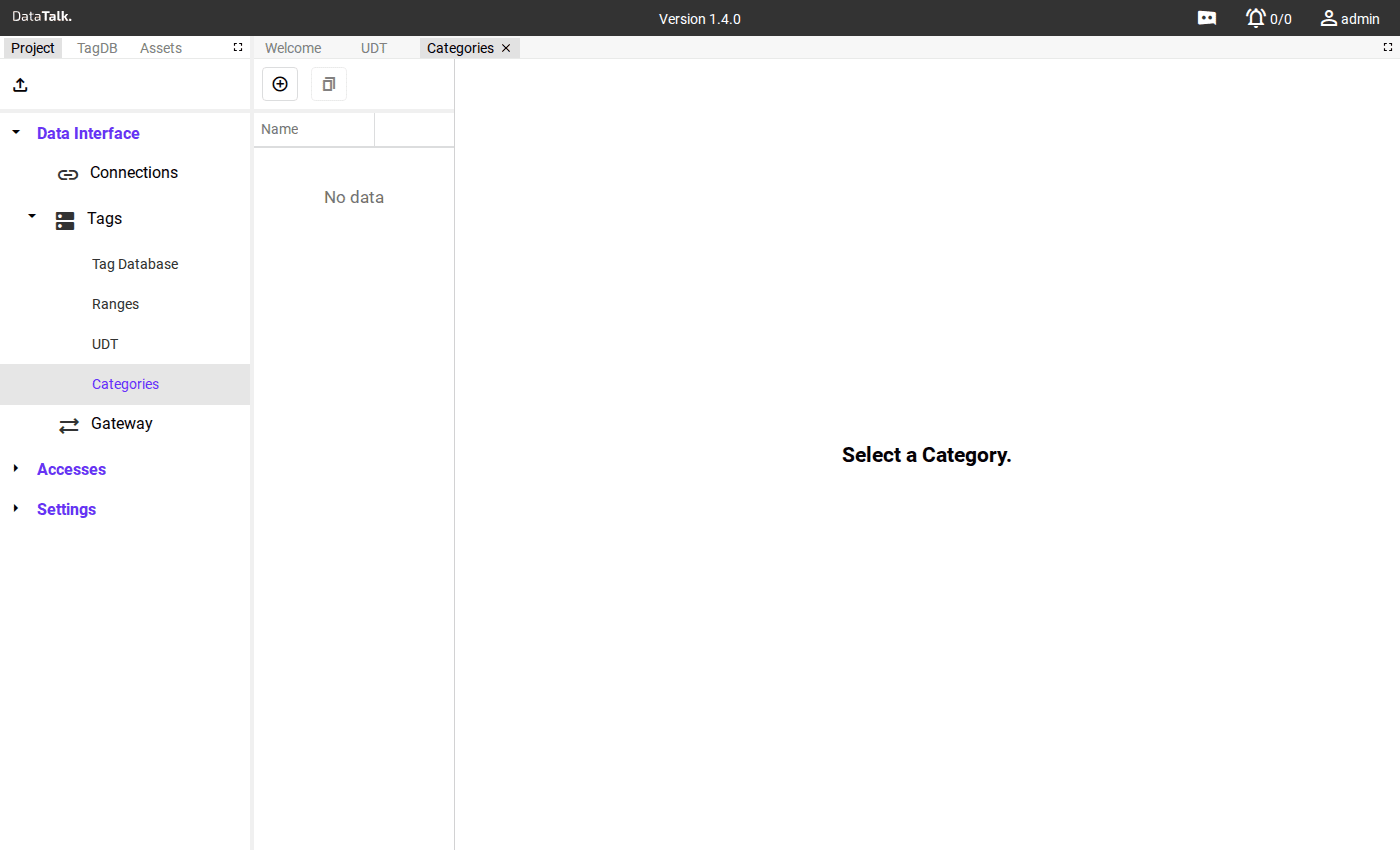
When a project grows to hundreds of tags, finding the right ones becomes slow and error-prone. Categories solve this by letting you label tags with one or more topic or area names — so an operator can instantly filter to just the energy meters, an engineer can export only the cooling-circuit tags, and a restricted user group sees only the equipment they’re responsible for.
A tag can belong to multiple categories. Once defined here, categories are available for assignment in the Tag Database and are recognized throughout the application to filter, group, and restrict access.
Creating a category
Click Add, enter a name, and optionally a description. Categories are immediately available for assignment in the Tag Database.
Common category structures:
- By physical quantity:
Temperature,Pressure,Flow,Level,Power,Energy - By system area:
HVAC,Compressed_Air,Cooling_Circuit,Boiler_Room - By equipment type:
Motors,Valves,Pumps,Drives,Sensors - By function:
Setpoints,Alarms,Production_Counters,Quality_Values
Where categories are used
Tag Database — Filter the tag grid to show only tags in a selected category.
HMI views — Build category-filtered trend charts, alarm lists, and data tables.
Historical data exports — Export only the tags that belong to a category.
Access control — Optionally restrict a user group to see and control only specific categories.
MQTT / OPC UA — Filter which tags are published on the outbound data servers.
Categories are easiest to assign when creating tags. Setting up the category structure at project start means every new tag gets categorized from day one. Retroactively categorizing hundreds of tags takes more time and is easy to miss.