
General
System-wide settings — available interface languages, operator intervention logging, authentication security policy, and project lifecycle management.
On this page
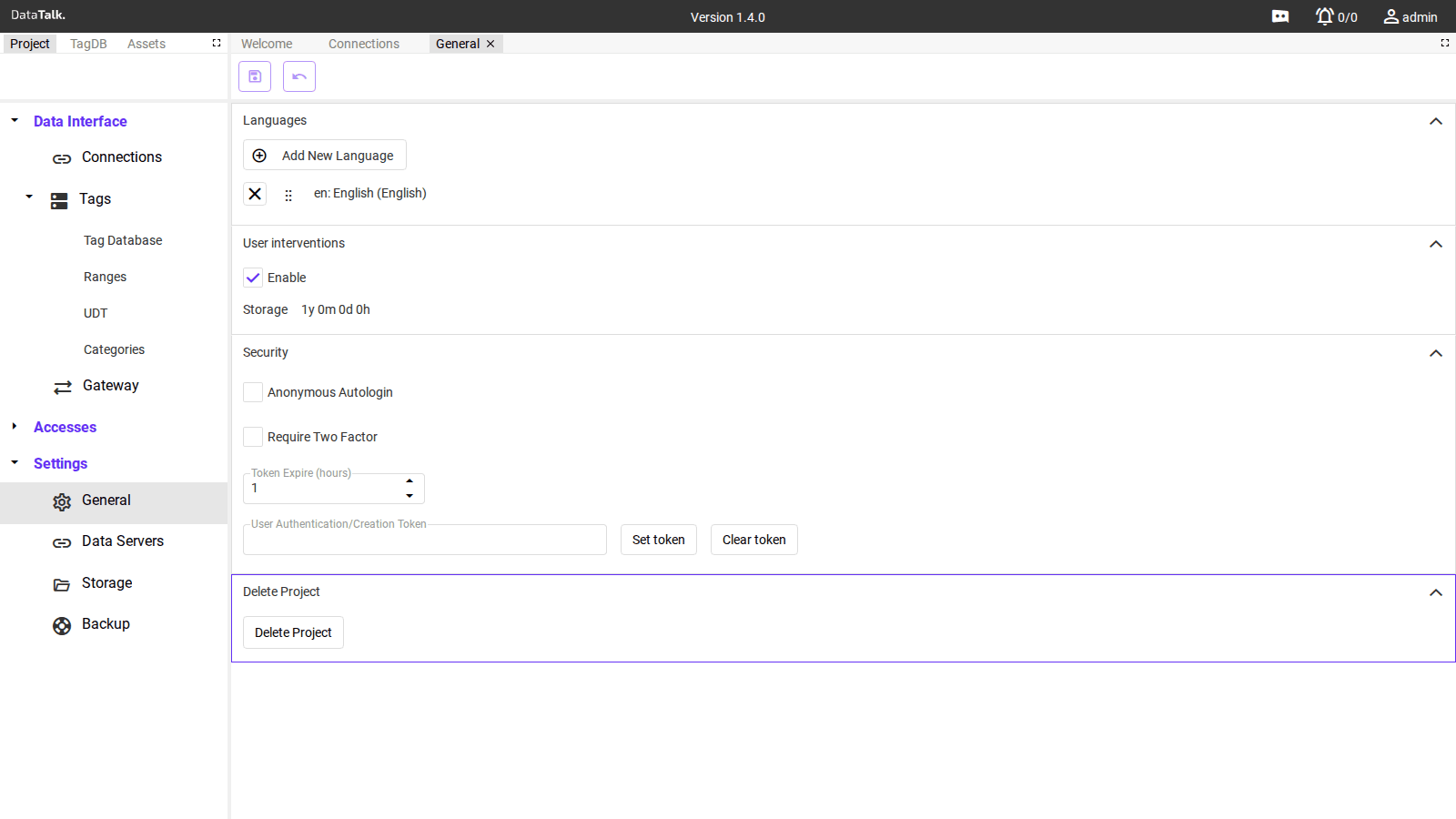
The General settings page covers system-wide configuration that applies across the entire project: language availability, audit logging, security policy, and project management.
Languages
Defines which interface languages are available for users to select in their profiles. Adding a language makes it selectable for individual users — it does not change the interface for everyone, and it does not change your project configuration in any way. Only the UI labels and menus change for users who select that language.
If your operators work in different languages, add all relevant locales here first, then each operator can choose their own language in their account settings. To add a language, click Add and select from the supported locales list. If a user’s selected language is later removed, they revert to the project default.
User Interventions
When enabled, every operator action that changes a value is recorded to the userLog with:
- The username of the operator
- The tag or object that was modified
- The previous and new value
- A precise timestamp
This creates a full audit trail of who changed what and when — important for regulated environments, shift handovers, and incident investigations. The userLog is only populated when this setting is enabled, so turn it on before operations begin if you need a complete record.
Storage — The retention period for the userLog, shown in years/months/days/hours (e.g., 1y 0m 0d 0h). Operator intervention records older than this limit are purged automatically. Adjust it on the Storage page.
Security
Anonymous Autologin — When enabled, the HMI loads without any login prompt. Anyone who can reach the gateway’s URL is automatically signed in and can interact with all HMI views and tag data. Intended only for physically isolated, trusted networks where access is controlled at the network perimeter.
Require Two Factor — When enabled, two-factor authentication (TOTP) becomes mandatory for all user accounts, not just those where 2FA is individually enabled. Turn this on to enforce a site-wide 2FA policy regardless of individual user settings.
Token Expire (hours) — How long a login session token stays valid after the last activity. Setting this to a short value (e.g., 1 hour) means idle sessions are automatically signed out. Increase it for operator workstations where re-authentication disrupts continuous operations.
User Authentication/Creation Token — A shared token used for programmatic account creation and authentication via the REST API. Click Set token to generate or set a value; click Clear token to revoke it. This token is separate from per-user API Tokens and is typically used only for automated provisioning workflows.
Never enable Anonymous Autologin on a gateway reachable from the internet or from any network that is not fully trusted. Every person who can reach the gateway’s IP address gains complete access to the HMI and all data.
Startup Screen
The Startup Screen setting defines the initial view displayed to all users when they access the web server or HMI, before any per-user override is applied. Configuring a startup screen ensures users are immediately directed to the most relevant information after login — for example the main plant overview or a critical process dashboard.
To set the startup screen:
Open General settings and scroll to the Startup Screen field.
Drag a view or component from the main project tree into the empty component box shown in the Startup Screen field.
Save the settings to apply the change. The selected view will be shown as the landing page for users who do not have a per-user startup screen configured on their account.
Delete Project
Permanently removes the entire project — all connections, tags, HMI views, equations, settings, users, and access configurations. The gateway resets to a blank state. This action cannot be undone.
Go to Backup and create a backup that includes Project, User Data, and Historical Data. Download the backup file to a location outside the device before proceeding.