
Storage
Monitor disk usage for all project components and configure the retention period for each historical log group.
On this page
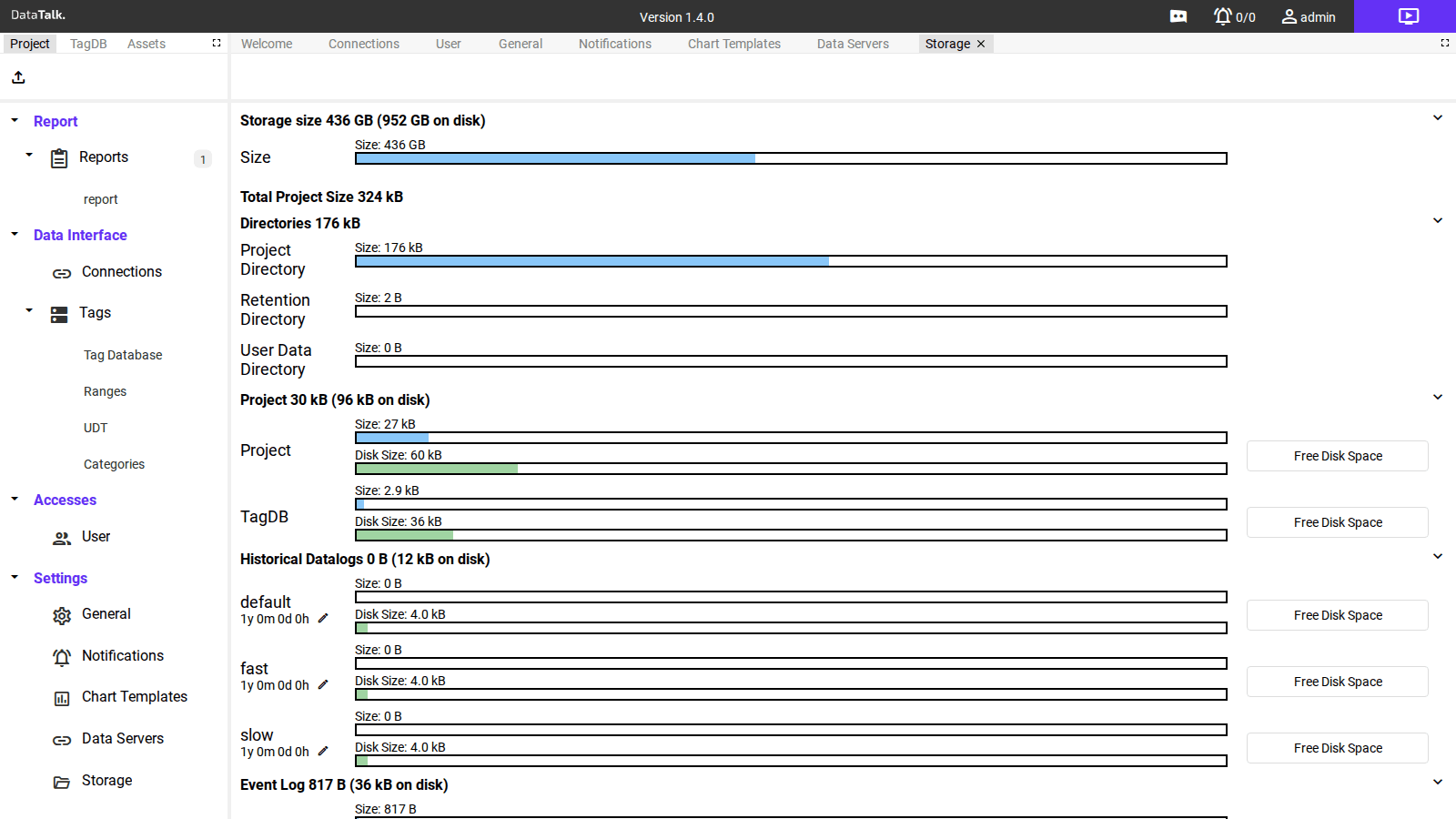
The Storage page shows a detailed breakdown of disk usage for every component of the project, and allows configuring the data retention period per log group.
Disk usage overview
The page is organized in collapsible sections, each showing the component’s current size (logical) and disk size (actual space on disk, which may differ due to file system block sizes):
Storage size — Total capacity of the disk volume where the application stores data (e.g., 436 GB capacity, 952 GB disk).
Directories — Space used by the project’s file directories:
- Project Directory — configuration files, report templates, user settings
- Retention Directory — data awaiting configured retention periods
- User Data Directory — user-uploaded assets
Project — Space used by the project configuration database:
- Project — the project settings and configuration
- TagDB — the tag database equations and linked tables
Historical Datalogs — Space used by the time-series log data for each log group. Three default groups are provided:
- default — standard sampling interval (e.g., 1 min)
- fast — high-frequency sampling (e.g., 1 s)
- slow — long-interval sampling (e.g., 15 min)
Each log group shows its current logical size and disk size alongside the configured retention period and a Free Disk Space button.
Event Log — Space used by the application’s internal event and diagnostic log.
Configuring retention per log group
Each historical log group has its own retention period displayed as Xy Xm Xd Xh (years, months, days, hours). The default is 1y 0m 0d 0h (1 year).
To change the retention for a log group, click the pencil icon (✏) next to the retention value and enter the desired period. Reduce the period if disk space is limited; increase it if longer report history is required.
Data older than the configured period is automatically deleted to free disk space.
Free Disk Space
The Free Disk Space button next to each log group immediately deletes all historical data for that group that exceeds the configured retention period. Use this to quickly reclaim disk space without changing the retention setting permanently.
Clicking Free Disk Space permanently removes historical log data beyond the retention limit. This data cannot be recovered. Use it when you need to reclaim disk space urgently, not as a routine operation.
A daily report only needs a few days of raw data. A monthly production trend report needs at least one month of history. Set retention for the fast group shorter (higher data volume) and for the slow group longer (lower data volume but needed for long-term trend reports).