
General
System-wide settings — interface languages, startup screen, user intervention logging, security policy, and project management.
On this page
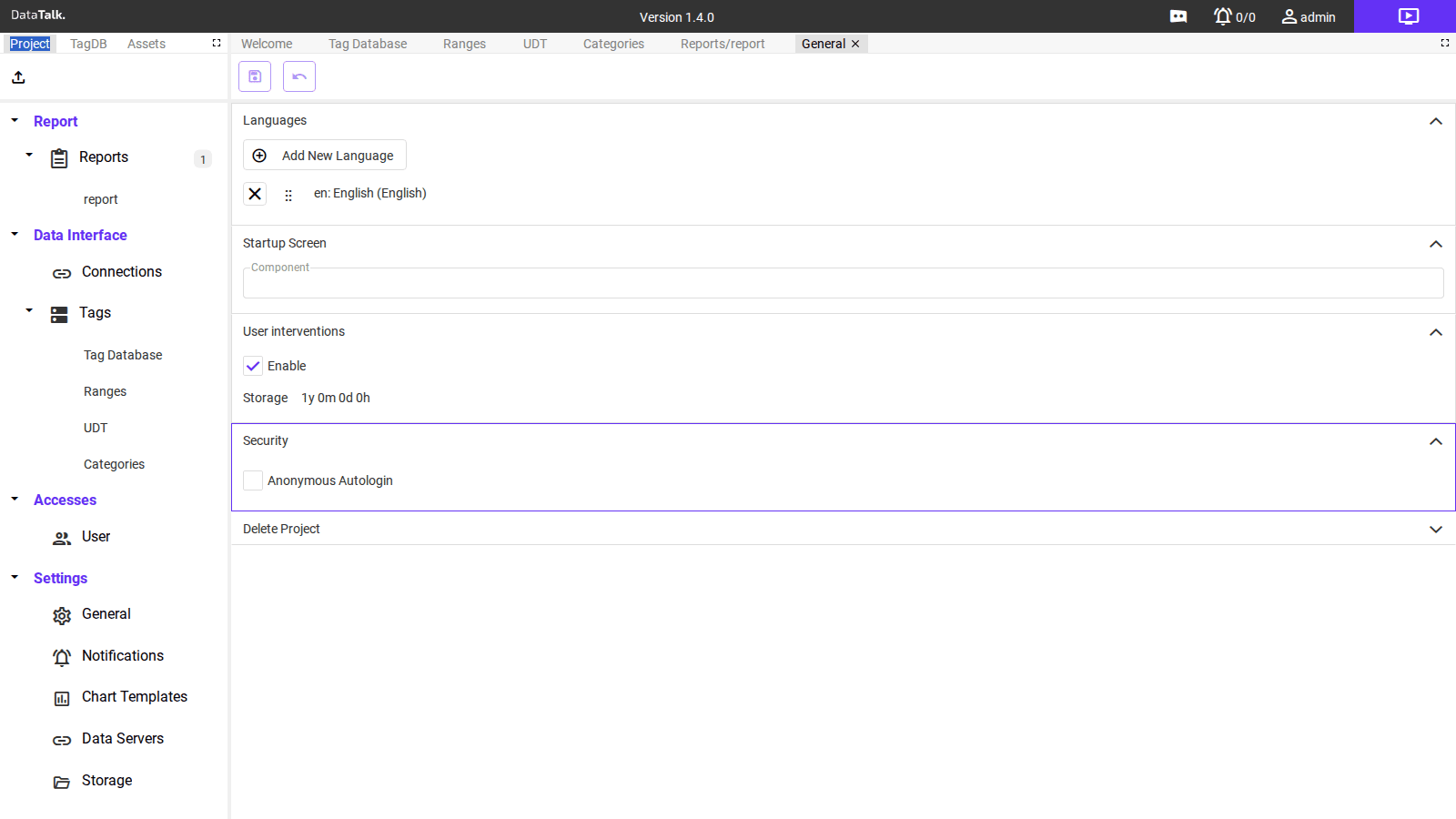
The General settings page controls application-wide behavior through five collapsible sections. Click any section header to expand it.
Languages
Defines which interface languages are available to users. The application ships with English (en) as the default. Additional languages can be added with the Add New Language button — once added, individual users can switch to their preferred language in their account settings.
Drag the handles (⠿) to reorder languages in the selector. Remove an unused language with the × button.
Startup Screen
Component — The HMI view or report page that opens automatically when users log in. Leave blank to show the default Welcome screen. Set this to a specific component (a report view, a live data dashboard) to send all users directly to their working view after login.
To assign a startup screen, drag a view or component from the main component tree into the Component field and save the settings.
This is the project-level default. Individual users can have their own startup screen set in Users.
User interventions
Records all manual changes made by users — tag writes, report triggers, configuration edits — with a timestamp and the username. Useful for shift handover documentation, audit trails, and troubleshooting.
Enable — Turn user intervention logging on or off.
Storage — How long the intervention log is retained (default: 1y 0m 0d 0h = 1 year). After this period, old entries are automatically deleted.
Security
Anonymous Autologin — When enabled, users can access the application without entering credentials. Suitable only for closed, controlled environments (dedicated operator panels with no network exposure). Disable for any installation accessible from a shared network.
With Anonymous Autologin enabled, any device that can reach the application URL gains full access. Enable only on physically secured, network-isolated operator terminals.
Delete Project
Permanently deletes the entire project configuration — all connections, tags, report templates, users, and settings. Historical data and generated report files may also be affected depending on storage configuration.
Take a Backup before using Delete Project. There is no confirmation step that can be undone — once deleted, the project configuration cannot be recovered.