Notifications
Configure notification channels and groups used for automatic report delivery and alarm alerts.
On this page
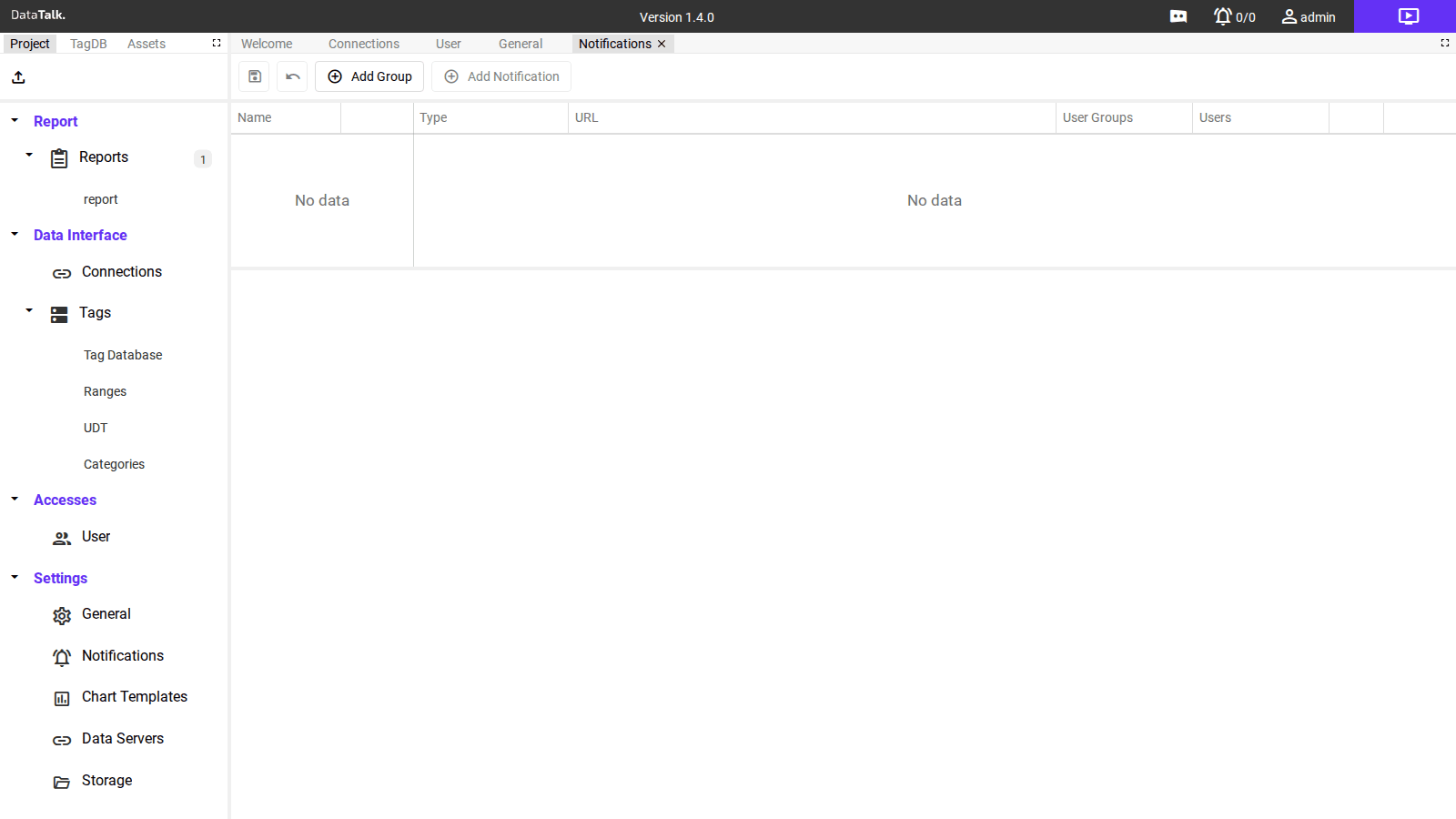
The Notifications page manages the channels through which the application sends automatic report deliveries and alarm alerts. The page is split into two panels: a Groups list on the left and a Notifications table on the right that shows the channels belonging to the selected group.
Concept: groups and notifications
Groups — named collections of notification channels. Create one group per delivery scenario or team — for example ShiftReport_Email, AlarmTeam_Webhook, Management_Daily. A group makes it easy to assign the same set of channels to multiple reports without reconfiguring each one individually.
Notifications — individual delivery channels within a group. Each notification has:
Name — a descriptive label for this channel (e.g., Production Manager, Maintenance Webhook).
Type — the delivery method. Supported types include:
- SMS USB / Integrated modem — sends SMS through a connected LTE USB modem
- Discord — posts to a Discord channel via webhook
- Slack — posts to a Slack channel via webhook
- Telegram — sends messages via a Telegram bot
- Email (SMTP) — sends email through an SMTP server
- WhatsApp — sends messages via the WhatsApp Business API
- SMS — sends SMS through an SMS gateway provider (e.g., Twilio, SMS Manager)
- Reddit — posts to a subreddit
After selecting a type, a setup guide appears below the form with the required URL format and configuration instructions for that service.
URL — the endpoint for this channel. For webhooks, the full HTTPS URL of the receiving endpoint. For email-based types, the recipient address or mail endpoint.
User Groups — which user groups receive this notification (links the channel to Users group membership).
Users — individual user accounts associated with this notification.
Adding a group
A new row appears in the Groups panel with an editable name field.
Type a descriptive group name and click the save icon. The group appears in the list.
Adding a notification channel
Click the group you want to add a channel to.
Opens a new row in the Notifications table on the right.
Enter the channel details. For webhooks, paste the receiving endpoint URL. For email, enter the target address or SMTP endpoint.
Link the notification to specific user groups or individual users so the system knows who to notify.
Click the Test button to send a test message through this channel. Verify delivery before saving — this confirms the URL and credentials are correct and the channel will fire when an alarm occurs.
The channel is active immediately.
Using notification groups in reports
When configuring a Report, you can select one or more notification groups to receive the generated output. The report is delivered to every channel in the selected groups each time it is generated.
Define your notification groups first, before creating report templates. Reports reference groups by name — having the groups ready allows you to assign delivery channels during the initial report setup without switching between pages.
Per-channel setup guides
USB / Integrated SMS Modem
Connect a USB LTE modem to the device running the application to send SMS without internet access. You need to provide the AT COM PORT of the modem, which can be found in Device Manager on Windows.
The currently supported modem is TELTONIKA TRM250. Other modems with standard AT commands may work, but are not guaranteed.
Use the {phone} placeholder in the URL field — the application automatically replaces it with the phone number from the notified user’s account.
On Linux (including graphical Ubuntu), the modem manager service occupies the modem’s serial port by default, blocking the application from using it. If SMS messages are not sent, stop or disable the modem manager service to free the port.
WhatsApp notifications require a Meta Business account and a completed WhatsApp Business API setup. During setup, Meta provides a test phone number and a unique access token. Use the following URL format in the notification URL field:
whatsapp://{token}@{from_phone_id}/{targets}Replace {token} with your access token, {from_phone_id} with the sending phone ID from Meta, and {targets} with the recipient phone number(s). WhatsApp Business API messages are charged according to Meta pricing.
Discord
Create a webhook in the target Discord channel (Channel Settings → Integrations → Webhooks → New Webhook), then copy the webhook URL. Paste that URL directly into the notification URL field. No additional account setup is required. Discord webhooks are free.
Telegram
Create a bot using @BotFather on Telegram. BotFather walks you through bot creation and provides a bot token. Then obtain the chat ID of the channel or conversation where you want notifications delivered. Use the following URL format:
tgram://bot_token/chat_idTelegram bot notifications are free.
Email (SMTP)
Provide the SMTP server details for your mail provider. Use the following URL template:
mailtos://{smtp_server}:{port}?user={user_email}&pass={password}&smtp={smtp_server}&from={user_email}&to={recipient_email}&mode=sslFill in {smtp_server}, {port}, {user_email}, {password}, and {recipient_email} with your actual SMTP credentials. Sending via your own SMTP server is free (beyond any costs your mail provider charges).

SMS (Gateway)
SMS notifications are sent through an SMS gateway provider and are typically charged per message. Supported providers include SMS Manager (Czech distributor, payable in CZK), Twilio, and other compatible SMS gateway services.
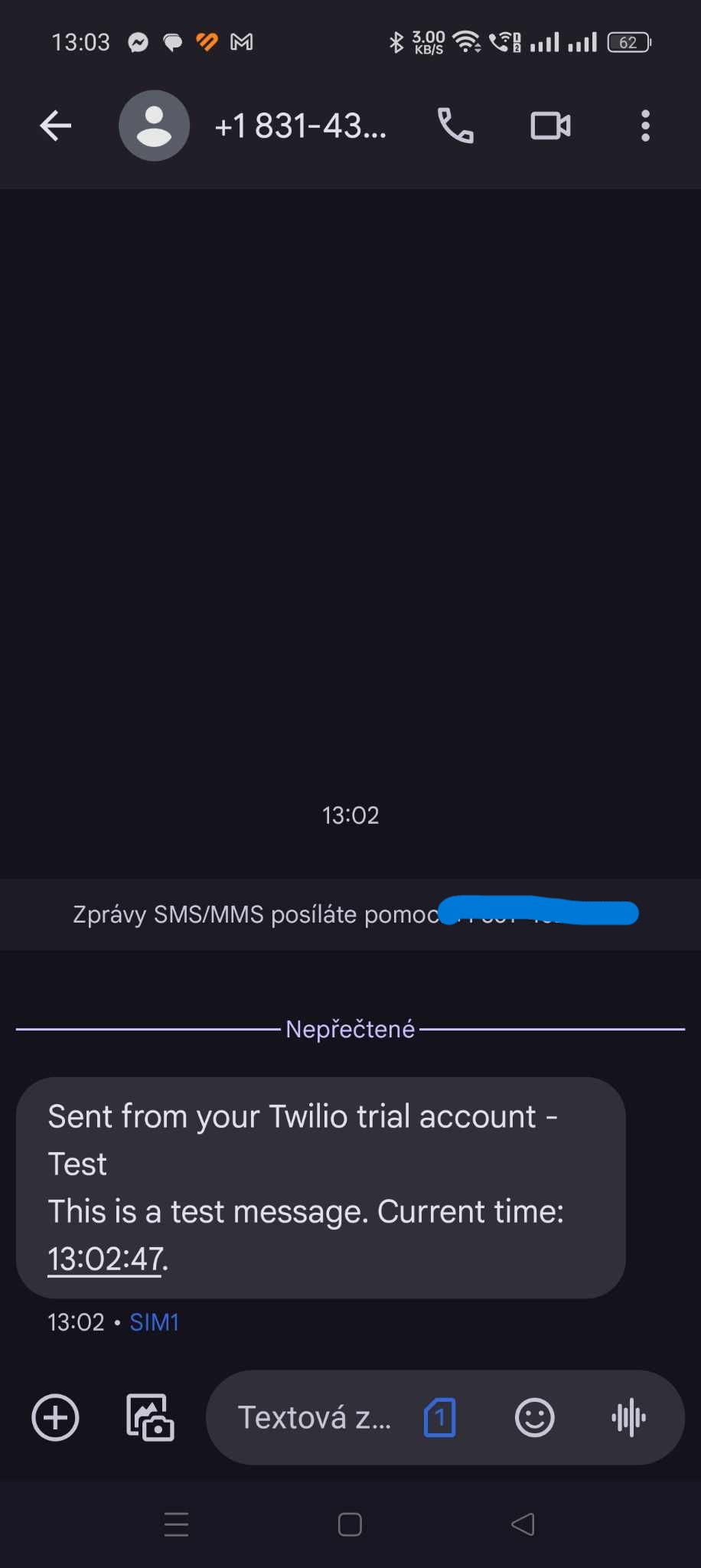
Twilio offers a free trial for initial testing. Use the following URL format for Twilio:
twilio://{account_sid}:{auth_token}@{from_phone_number}/{to_phone_number}