
Backup
Create project configuration snapshots and restore the project from a backup file.
On this page
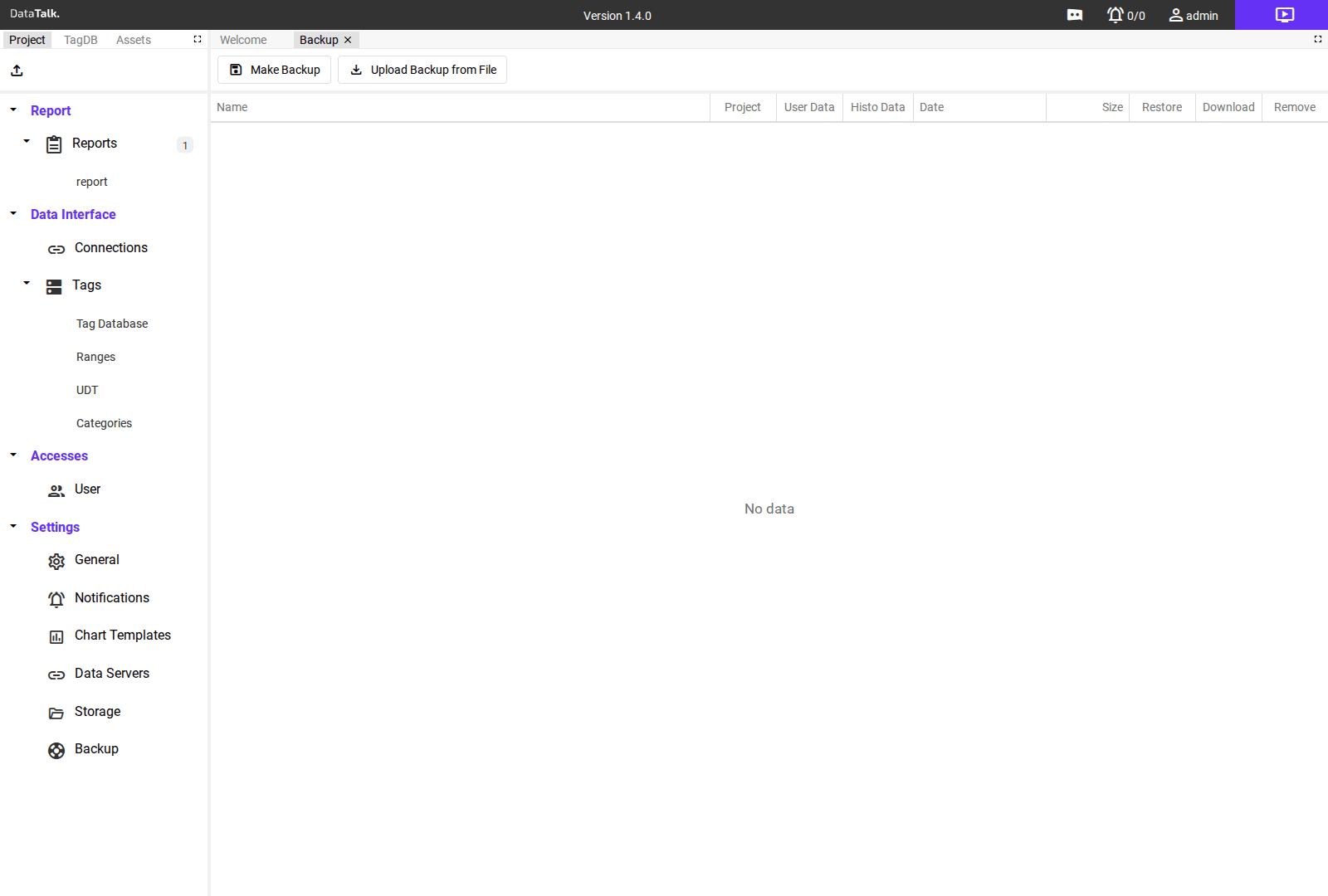
The Backup page manages project configuration snapshots. A backup captures the project configuration — connections, tag database, report templates, chart templates, user accounts, and all settings — as a single archive file that can be downloaded, stored externally, and restored later.
Backup list
The main area shows all created backups in a table with these columns:
Name — the name assigned to the backup at creation time.
Project — indicates whether the backup includes the project configuration (connections, tags, report templates, settings).
User Data — indicates whether the backup includes user-uploaded assets (images, Word templates, and other project files).
Histo Data — indicates whether the backup includes historical datalog data.
Date — the date and time when the backup was created.
Size — the file size of the backup archive.
Each row in the list has three action buttons: Restore, Download, and Remove.
Creating a backup
Click Make Backup to create a new snapshot of the current project. The backup is generated immediately and appears as a new row in the list with the current date and time.
After creating a backup, click Download on the new row to save the archive to your computer or an external storage location.
A backup stored only on the same disk as the application provides no protection if the disk fails. Download the backup file and store it on a network share, a cloud storage location, or a separate machine.
Restoring from a backup
From the backup list — click Restore on any row to restore the project from that backup. The application replaces the current project configuration with the backup contents.
From an external file — click Upload Backup from File to select a backup archive file from your computer. This is used when restoring on a fresh installation or when the original backup list has been lost.
Restoring from a backup overwrites the current project configuration completely — all connections, tags, report templates, user accounts, and settings are replaced with the backup contents. Historical datalog data is only affected if the backup includes Histo Data. Create a current backup before restoring so you can recover the current state if the restore produces an unexpected result.
Removing backups
Click Remove on a backup row to delete it from the list. This frees storage space on the device. Only remove backups you are certain you no longer need — deletion is permanent and the backup file cannot be recovered from the list once removed. Keep at least the most recent backup at all times.
Take a manual backup before significant configuration changes — adding a new production line, restructuring the tag database, or upgrading the project. This gives you a clean restore point if something goes wrong during the change.