
Views
A View is a screen you draw yourself — create, open, duplicate and manage views in the Project tree and run them as operator screens.
On this page
A View is a free-form vector screen: a plant overview, a machine faceplate, a control panel. Unlike a Dashboard, where ready-made components are arranged on a canvas, everything in a view is drawn from basic elements — rectangles, ellipses, paths, lines and text — that you animate with live tag values and turn into buttons with commands.
Views live in the Project tree under Visuals → Views.
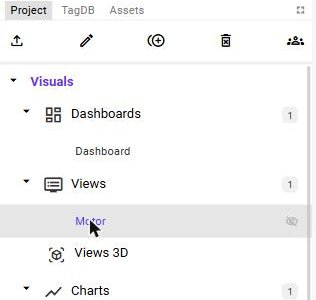
The Project tree contains a separate Views 3D node for three-dimensional screens. It is not covered by this manual section, which describes the 2D Views.
Creating a view
Click the purple button in the top-right corner of the page. The Project tree appears on the left.
Click Views in the tree — a + button appears at the right end of the row. Click it.
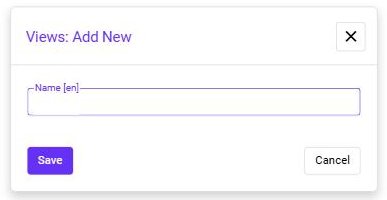
Enter a name and click Save. The name is entered per language (Name [en] for English). The new view appears under Views.
Double-click the view. It opens in its own tab called Views/<name> — see View Editor.
Managing views
Right-click a view in the tree to open its context menu:
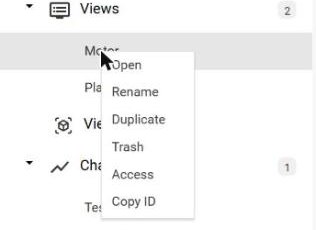
| Command | What it does |
|---|---|
| Open | Opens the view in the editor. |
| Rename | Changes the name of the view. |
| Duplicate | Creates a copy of the view — a quick way to start a similar screen. |
| Trash | Deletes the view. |
| Access | Selects the user groups that are allowed to see the view. |
| Copy ID | Copies the unique ID of the view. You need it to open the view from a script. |
Running views
Leave edit mode (click the purple button again) to get the operator interface. Open the navigation menu with the ≡ button in the top-left corner — every view you have access to is listed under Views.
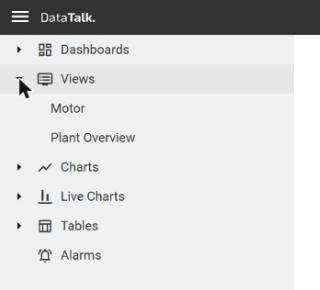
The view is scaled to the size of the browser window. Animations react to live tag values, and elements that have commands react to the mouse.
Where to continue
- View Editor — the editor interface and drawing elements
- Parameters — one view, many devices
- Animations — bind properties to tags
- Set Commands and Open Commands — make the screen interactive
- Tutorial — Reusable Motor Faceplate — everything together