
Open Commands
Navigate from any element to another view, chart or dashboard — in place, in the parent, in a popup or inside a component — and pass parameters along.
On this page
Any element in a view can be configured with an Open command. Open commands provide navigation between views and other DataTalk components, so an operator can go from an overview screen to the detail of a machine without any separate navigation logic.
An Open command can:
- replace the current view with another view,
- open a chart or trend,
- open a dashboard,
- open another supported visualization component,
- replace a component within the current view with another view, chart, trend, dashboard or other component,
- open a popup window.
Adding an Open command
Select the element that should act as the link — for example a rectangle that represents a motor.
Scroll the properties panel down to the Open section. Drag the view (or chart, dashboard…) from the Project tree onto the Open field. The field shows the target, for example Views / Motor, and two icons appear beside it — Properties (gear) and Remove.
The Open field cannot be typed into. It only accepts an item dragged from the Project tree.
Click the gear to choose where the target opens and which parameter values it receives.
Save the view and check the result in view mode.
Command properties
The Properties dialog has three tabs: Target, Parameters and Smart Table Filters.
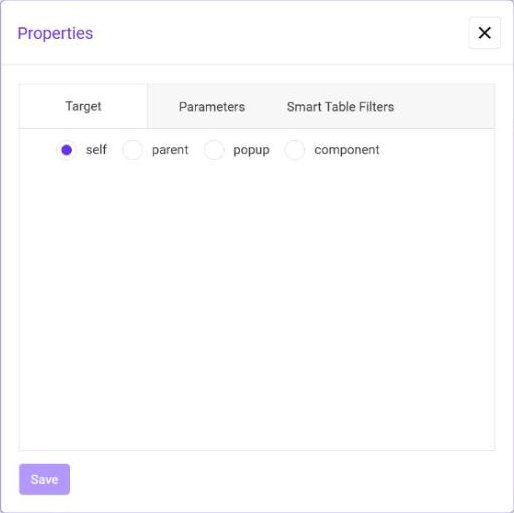
Target
| Target | Behavior |
|---|---|
| self | Replaces the current view with the target. |
| parent | Applies the command on the parent view. |
| popup | Shows the target in a popup window above the current view. |
| component | Replaces the content of a chosen component of the current view — for example a chart with a table. Choose the component in the Select list. |
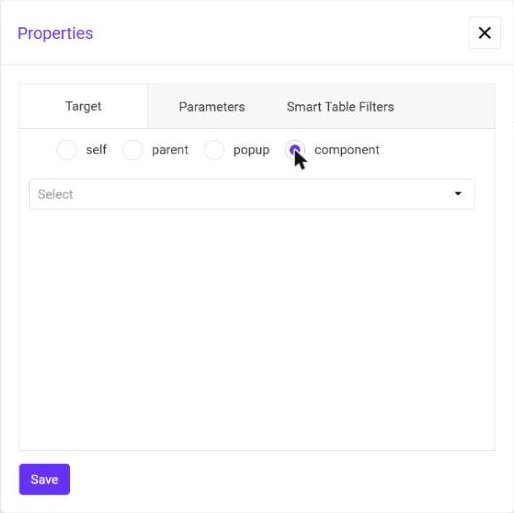
Popup settings
When the target is popup, the dialog shows how the window looks and behaves:
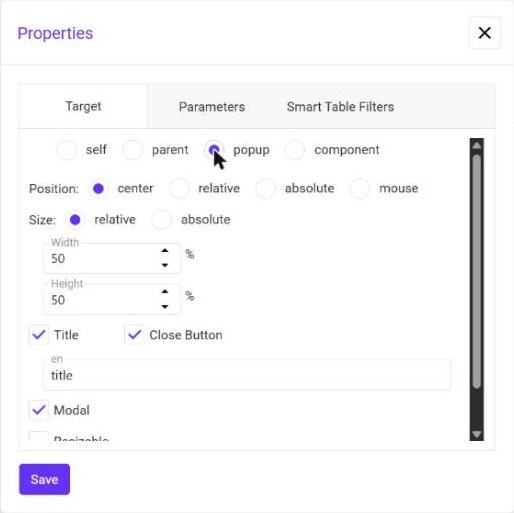
| Setting | Options |
|---|---|
| Position | center, relative, absolute or mouse (at the position of the click). |
| Size | relative (Width and Height in % of the window) or absolute (pixels). |
| Title | Shows a title bar. Enter the title text per language. |
| Close Button | Shows a button that closes the popup. |
| Modal | Blocks the rest of the screen until the popup is closed. |
| Resizable | Lets the operator resize the popup. |
| Movable | Lets the operator move the popup. |
Parameters
The Parameters tab lists the parameters that the target view defines. Enter the value that this element passes to the view:
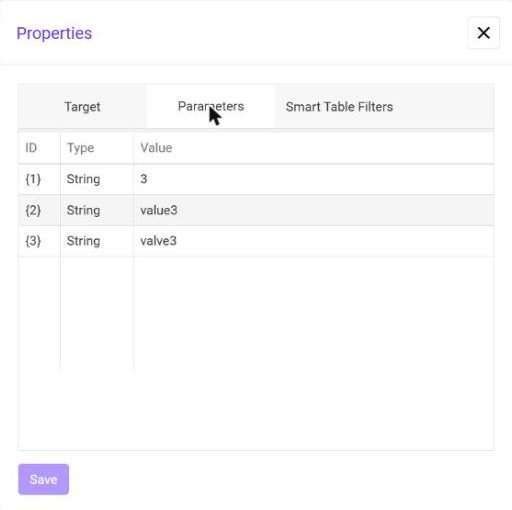
The list is read from the target view and starts with its default values. If you add or change parameters in that view, the dialog reports Parameters have changed in the database, values were updated the next time you open it.
Every element passes its own values, so one Motor view serves many motors. In the tutorial the tile of motor 3 passes {1} = 3, {2} = value3 and {3} = valve3:
Example
A plant overview contains a motor symbol. The Open command of the symbol points to the Motor view and passes the value 3 in parameter {1}:
Open → Views / Motor → {1} = 3Clicking the symbol in view mode opens the Motor view for motor 3 — the title reads Motor 3, and every reference that uses {1} points to motor 3.
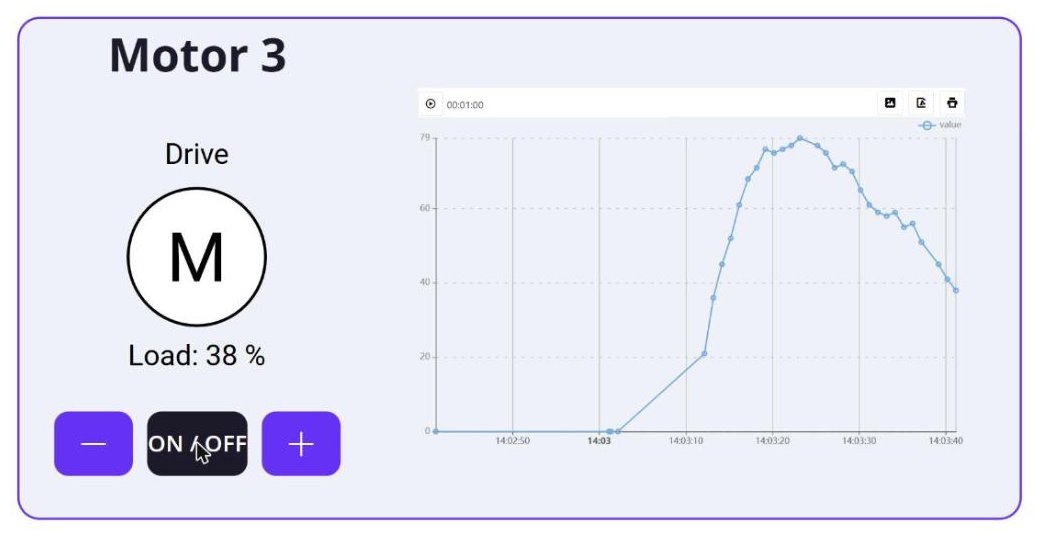
The same overview graphic can be used for all motors: duplicate the symbol, change the value, and each one opens the corresponding faceplate.
The command belongs to the element you configured. If a text or other element lies on top of it, clicks on that element do not trigger the command — give the text the same command, or put the command on the top-most element.
Opening from a script
Scripts can open components with the open function. The command has the form type.ID; to get the ID of a view, right-click it in the Project tree and choose Copy ID. Parameters are passed as an optional array of type (number, string or object) and value:
helper.open('view.viewID', [{ type: 'number', value: 3 }]);See View Scripts for the other open functions.