
Set Commands
Turn any element of a view into a control — write a fixed value, ask the operator for a value, increment, decrement or toggle a tag on click, right click, mouse down or mouse up.
On this page
Any element in a view can be configured as a Set command. Set commands let operators interact with the process directly from the visualization: a rectangle becomes a start button, a text becomes an input field for a setpoint, a small triangle becomes an “increase” arrow.
Interaction events
Select an element and scroll the properties panel to the command sections. DataTalk supports four interaction events, each with its own section:
| Section | Event |
|---|---|
| Set | Mouse click |
| Set Right Click | Mouse right click |
| Set Mouse Down | Mouse button pressed |
| Set Mouse Up | Mouse button released |
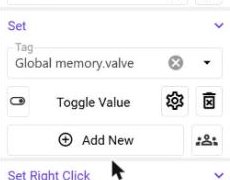
Each section has an Add New button. A single event can perform one or more actions — click Add New repeatedly to add further commands to the same event, so one operator action can change several tags. The people icon next to Add New restricts the command to selected user groups (see Users).
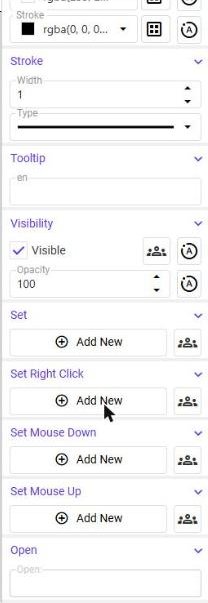
Adding a Set command
Click the element on the canvas or in the layer tree — for example a rectangle drawn as a button.
In the Set section (or Set Right Click, Set Mouse Down, Set Mouse Up) click Add New. A command row appears with a Tag field.
Drag a tag from the TagDB tab into the Tag field. In a parametric view the varying part of the path is a placeholder — see Parameters.
Click the icon on the left of the command row and select one of the methods described below.
Click the gear icon (Properties) to open the settings of the selected method — the value to write, or the step and limits.
Setting tag values
A set command can modify a tag value using four methods:
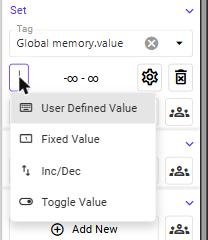
User Defined Value — the operator is prompted to enter the value that is written to the tag.
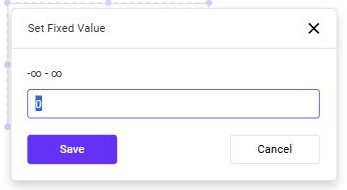
Fixed Value — writes a predefined value. The properties dialog shows the allowed range of the tag and the value to write.
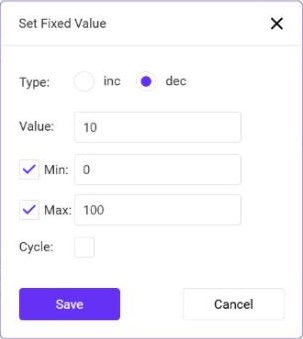
Inc/Dec — increases (inc) or decreases (dec) the current value of the tag by a Value step. Optionally tick Min and Max to keep the result within limits, and Cycle to wrap around when a limit is reached instead of stopping.
Toggle Value — toggles the value of the tag, which suits start/stop and on/off buttons.
Example — three buttons of a motor faceplate
| Button | Set command |
|---|---|
| − | Inc/Dec — dec, step 10, Min 0, Max 100 → Global memory.{2} |
| ON / OFF | Toggle Value → Global memory.{3} |
| + | Inc/Dec — inc, step 10, Min 0, Max 100 → Global memory.{2} |
{2} and {3} are view parameters that hold the names of the tags of one motor, so the same three buttons control whichever motor the view was opened for. The full walk-through is in Tutorial — Reusable Motor Faceplate.
Running view scripts
According to the product specification a set command can also execute a custom view script. This allows more complex operations to be implemented, such as:
- modifying multiple tags,
- performing calculations,
- executing conditional logic,
- or implementing custom operator actions.
See View Scripts.
Give a button visual feedback: bind its fill to the same tag with an animation, so the operator sees the effect of the click immediately.