
Parameters
Parameters turn a view into a reusable template — define {1}, {2}… once, use them in tag names and texts, and pass different values every time the view is opened.
On this page
Parameters let you build parametric components that can be reused with different tags or data sources. Instead of drawing ten separate motor screens you draw one Motor template and open it ten times with a different parameter value.
Parameters are available in Views, Charts, Dashboards and Tables — wherever parameterized references are supported.
How parameters work
The principle is simple:
- Define one or more parameters for the view.
- Use parameter placeholders such as
{1},{2}… when defining tags or other references. - Pass parameter values when the view is opened.
For example, a view can use the tag:
machine.motor{1}.powerWhen the first parameter is 1, DataTalk resolves the reference to machine.motor1.power. When the first parameter is 5, it becomes machine.motor5.power.
This allows you to create a single view for multiple devices. Instead of creating ten separate motor screens, create one Motor template and open it with parameters 1 through 10.
Placeholders are numbered in the order in which the parameters are defined: {1} is the first parameter, {2} the second, and so on.
Defining parameters
Double-click the view in the Project tree (Visuals → Views). It opens in its own tab.
Click the Parameters button in the editor toolbar (the first icon after the undo/redo buttons). The Parameters and Filters dialog opens.
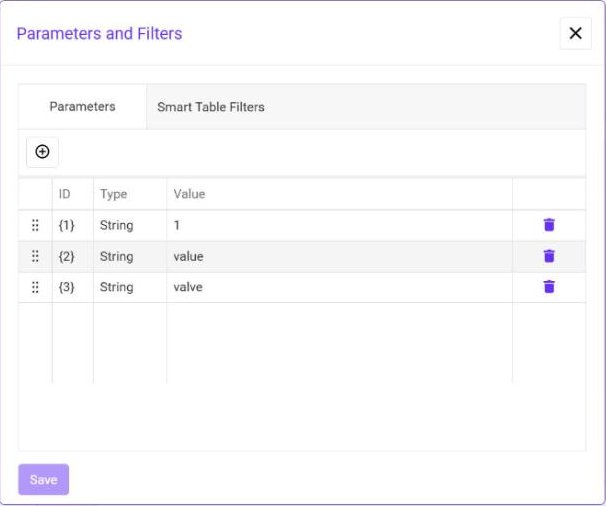
On the Parameters tab click the + button. A new row appears with the next free ID ({1}, then {2}…) and the type String.
Double-click the Value cell and enter the value the view uses when it is opened without an explicit parameter — for example 1. The default value is also used by the editor’s live preview, so you always see a working screen while you design it.
Click Save in the dialog and then save the view.
Rows can be reordered by dragging the handle on the left and removed with the trash icon on the right. Because placeholders are numbered by position, change the order only if you also update the places where the parameters are used.
Using parameters in tags
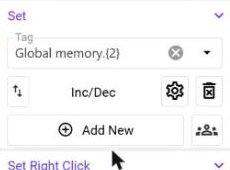
Anywhere a tag is chosen — an animation, a Set command, a chart series, a symbol property — the reference can contain a placeholder instead of a fixed name. Click the Tag field, select the current text and type the reference with the placeholder, for example:
Global memory.{2}A placeholder can be entered only when the parameter already exists in Parameters and Filters (and the view is saved) and when its default value gives the name of an existing tag. With {2} = value the reference Global memory.{2} resolves to the tag Global memory.value, and the field accepts it. If the resolved tag does not exist, the field returns to the previous value.
The whole tag name (or its varying part) is therefore usually a string parameter: instead of machine.motor{1}.status you can also pass the name of the tag itself as a parameter. A typical motor faceplate uses three parameters:
| Parameter | Meaning | Motor 1 | Motor 2 | Motor 3 |
|---|---|---|---|---|
{1} | Number shown in the title (Motor ${1}) | 1 | 2 | 3 |
{2} | Tag with the motor load | value | value2 | value3 |
{3} | Tag with the run state | valve | valve2 | valve3 |
The faceplate then uses Global memory.{2} for the load and Global memory.{3} for the run state everywhere — in the symbol, in the + and − buttons, in the ON / OFF button and in the chart.
Example
A motor template uses:
machine.motor{1}.power
machine.motor{1}.speed
machine.motor{1}.status
Opening the view with parameter 3 automatically displays:
machine.motor3.power
machine.motor3.speed
machine.motor3.statusA chart that is placed in a view has its own Parameters dialog (the toolbar button after Save). Define the parameter there, use it in the tag of the series (Global memory.{2}) and pass the same values as to the view. Parameters are matched by their number.
Values come from the Open command of the calling element. If you open the view directly from the menu, the default values from the parameter table are used.
Displaying parameter values
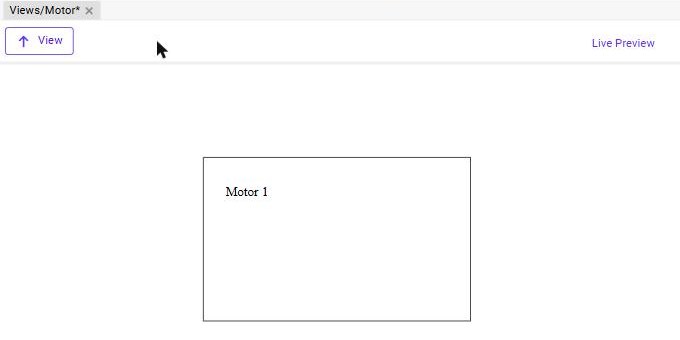
Parameter values can also be displayed directly in text elements using the ${n} syntax. For example, a text element containing:
Motor ${1}is displayed as Motor 1 in the preview, and as Motor 5 when the view is opened with parameter 5. ${1}, ${2}, ${3} … correspond to the first, second, third and subsequent view parameters.
Passing parameter values
Parameter values are passed when the view is opened:
- from an Open command on any element of another view — see Open Commands;
- from a script —
helper.open('view.viewID', [{ type: 'number', value: 3 }]), see View Scripts.
A plant overview can therefore contain ten motor symbols, each opening the same Motor view with its own number.
Give every parameter a default value that points to an existing tag. The field accepts a placeholder only in that case, and the editor preview shows real data before the view is ever opened from another screen.