
Quick Start
Enable AI Expert, choose the AI provider, describe your installation and ask the AI Assistant the first question.
On this page
This guide takes you from a project with tags and alarms to a working AI Assistant. It assumes that the AI Module is licensed and that the project already reads data from a device — for example with Alarm & Notify, Real time Dashboards, Connect, Log & Report or Web HMI.
All configuration steps happen in Edit Mode — click the pencil icon at the top right of the top bar.
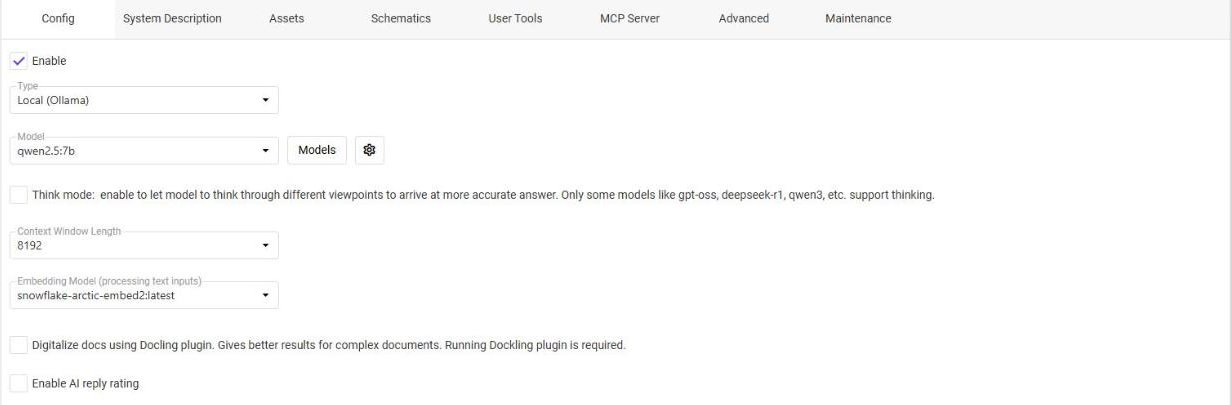
In the Project tree click Settings → AI Expert. The settings open with the Config tab.
Check Enable and select the Type:
- OpenAI, Anthropic (Claude) or Google (Gemini) — select a Model and paste the API key of your account.
- Local (Ollama) — click the gear and enter the address and port of your Ollama server (and the authorization token if Ollama runs as a plugin of DataTalk Manager — it is shown in Plugins → Plugin settings → Ollama), then select one of the installed models in Model. New models are downloaded with the Models button. Check first that your hardware is sufficient — see Running AI Locally.
Click Save in the toolbar.
With Ollama the application checks that an embedding model is installed. If it is missing, it offers to download it — confirm with Yes (internet connection required). The embedding model is needed for searching documents and data.
Open the System Description tab and write a short briefing about your installation:
- what the facility or machine does,
- what the important tags represent (e.g. “Tag
TIC-101is the reactor inlet temperature in °C”), - how the tags are named (e.g. “All tags starting with
TICare temperature controllers”), - preferred units and alarm escalation rules.
Save.
In the Assets tab upload manuals, operating procedures or specifications. In the Schematics tab import electrical schematics exported from EPLAN or another CAD tool as PDF.
Click the chat icon in the top bar and ask, for example:
- What alarms are currently active?
- Which alarms occurred most often in the last 24 hours?
- What is the current value of “TIC-101”?
Write tag names in double quotes — the assistant treats them as exact tag identifiers. You can ask in your own language; to get the answers in it, select the language with the language button in the toolbar of the assistant.

In the Advanced tab you set how many alarms and tags the assistant receives with each question. Raise the limits if it is missing data, lower them if the answers are slow.
Next steps
- What AI Expert Can Do — live data, history, documents, schematics, root cause analysis.
- AI Assistant — conversations, search mode, voice and root cause analysis.
- AI Expert Settings — all tabs in detail.