
AI Expert Settings
All settings of the AI Module — provider and model, Ollama models, system description, documents, electrical schematics, user tools, MCP server, data limits and maintenance.
On this page
The AI Module is configured in Edit Mode → Settings → AI Expert. The page has eight tabs: Config, System Description, Assets, Schematics, User Tools, MCP Server, Advanced and Maintenance. Save the changes with the Save button in the toolbar; Undo takes back changes that have not been saved yet.
The AI Conversation button in the top-right corner opens the overview of all conversations — see AI Conversations.
Config
The core settings: whether the assistant is active, which AI provider and model it uses and which extra functions are switched on.
Enable — switches the AI Module on. When it is off, the assistant shows AI is not enabled. Please check the AI settings.
Type — the AI provider:
| Type | Fields | Models offered (examples) |
|---|---|---|
| OpenAI | OPENAI API KEY | gpt-5.5, gpt-5.5-instant, gpt-5.4, gpt-5.4-mini, gpt-5.4-nano, gpt-5.2, gpt-4o … |
| Anthropic (Claude) | Anthropic API KEY, VOYAGE API KEY (Embeddings) | claude-opus-4-5, claude-sonnet-4-5, claude-haiku-4-5 |
| Google (Gemini) | GEMINI API KEY | gemini-2.5-pro, gemini-2.5-flash, gemini-2.5-flash-lite, gemini-3-pro-preview, gemini-3-flash-preview |
| Local (Ollama) | Ollama server settings (gear) | The models installed on your Ollama server |
Model — the model of the selected provider.
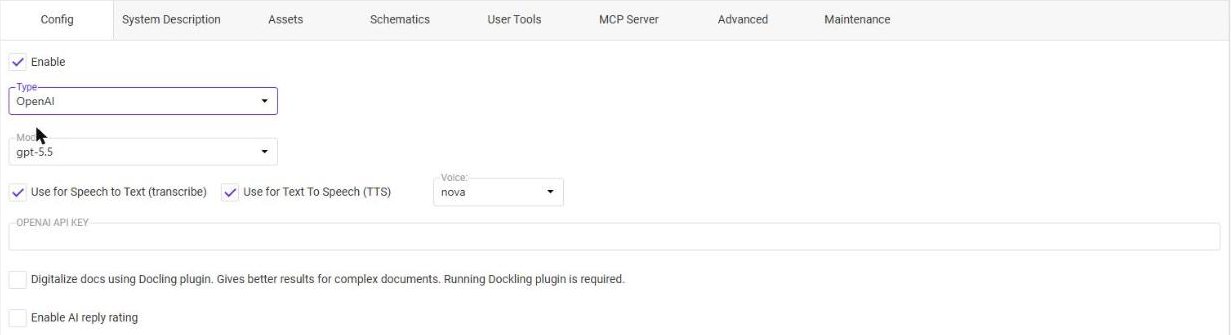
Options of the cloud providers
OPENAI / Anthropic / GEMINI API KEY — the API key of your account at the provider. Without a valid key all requests are rejected. Requests are billed by the provider.
VOYAGE API KEY (Embeddings) — with Anthropic, the key of the Voyage service that processes texts (embeddings) for searching documents and data.
Use for Speech to Text (transcribe) — OpenAI only. A microphone button in the assistant lets users speak their questions.
Use for Text To Speech (TTS) — OpenAI only. The assistant can read its answers aloud. Voice selects the voice: nova, ash, alloy, ballad, coral, echo, fable, onyx, sage, shimmer or verse.
Local models with Ollama
With Local (Ollama) the model runs on your own server and no data leaves your network. A local model needs powerful hardware — a dedicated graphics card with enough memory; see Running AI Locally (Ollama) for rough estimates and recommendations.
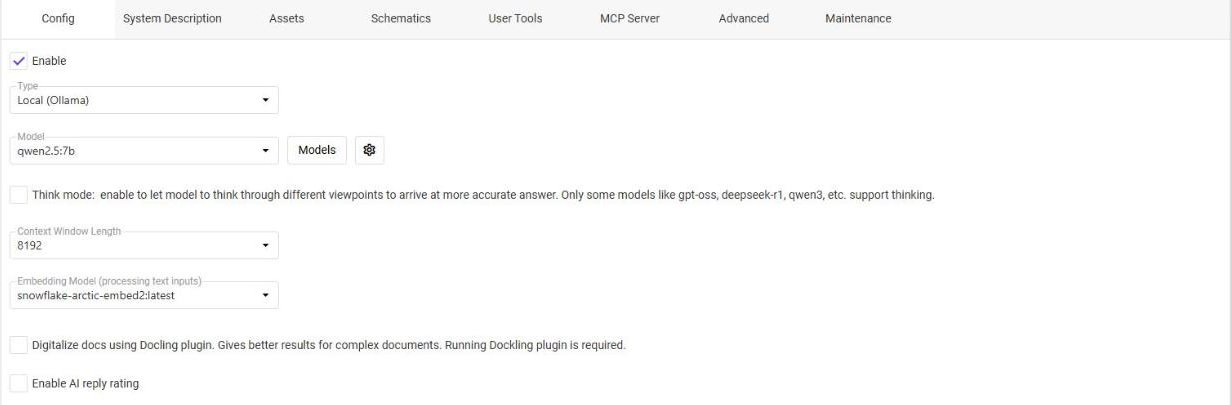
Model — one of the models installed on the Ollama server.
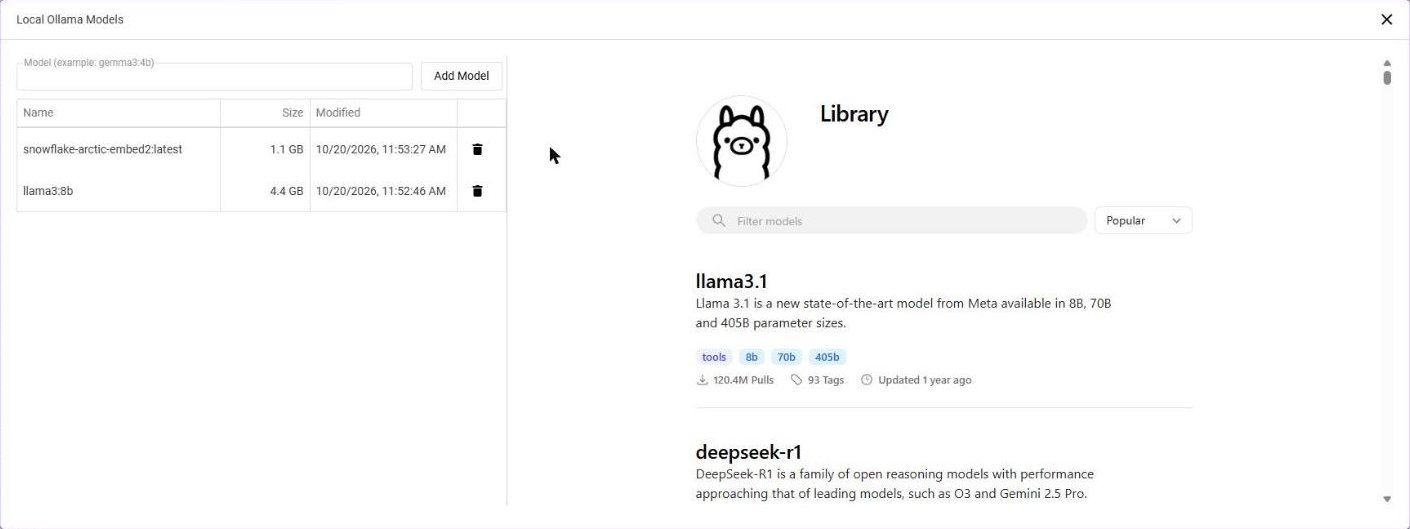
Models — opens Local Ollama Models: the installed models with their size and date, a Delete button for each, an Add Model field for downloading a model by its name (for example gemma3:4b) and the Library of available models with their sizes and labels.
Gear — Ollama Settings: the URL (IP Address) and Port of the Ollama server (default 127.0.0.1, 11434), an optional Authorization token, and Use secondary Ollama for embeddings for running the embedding model on another Ollama server.
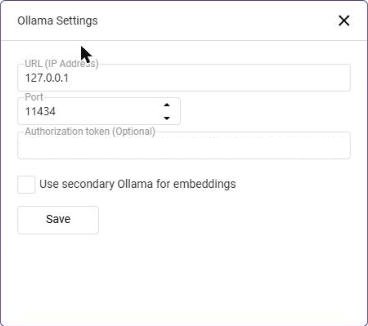
When Ollama runs as a plugin of DataTalk Manager, it is protected by a token. Open DataTalk Manager, go to Plugins → Plugin settings → Ollama and copy the bearer token shown there. Paste it into Authorization token in Ollama Settings — without it AI Expert cannot connect to the plugin. See Plugins.
Think mode — lets the model think through different viewpoints before it answers, for more accurate answers. Only some models support thinking, for example gpt-oss, deepseek-r1 or qwen3.
Context Window Length — how much text the model can process in one request, from 2048 to 65535 tokens. A larger window allows more alarms, tags and history in the context, but needs more memory on the server and makes answers slower — see How much memory a model needs.
Embedding Model (processing text inputs) — the model that processes texts for searching documents and data, for example snowflake-arctic-embed2.
When the Ollama server has no embedding model, the application asks: Ollama is ready, but does not contain embedding model required for processing text inputs. Download model? (internet connection required). Yes downloads the model, No closes the question without downloading. Without an embedding model, searching documents and finding data by their content does not work.
Root cause analysis needs a model that supports tools. In the Ollama library such models carry the tools label.
Options for all providers
Digitalize docs using Docling plugin — better results for complex documents such as scanned pages, tables or multi-column layouts. Requires the running Docling plugin.
Enable AI reply rating — users can rate the answers; administrators filter them by rating in AI Conversations.
System Description
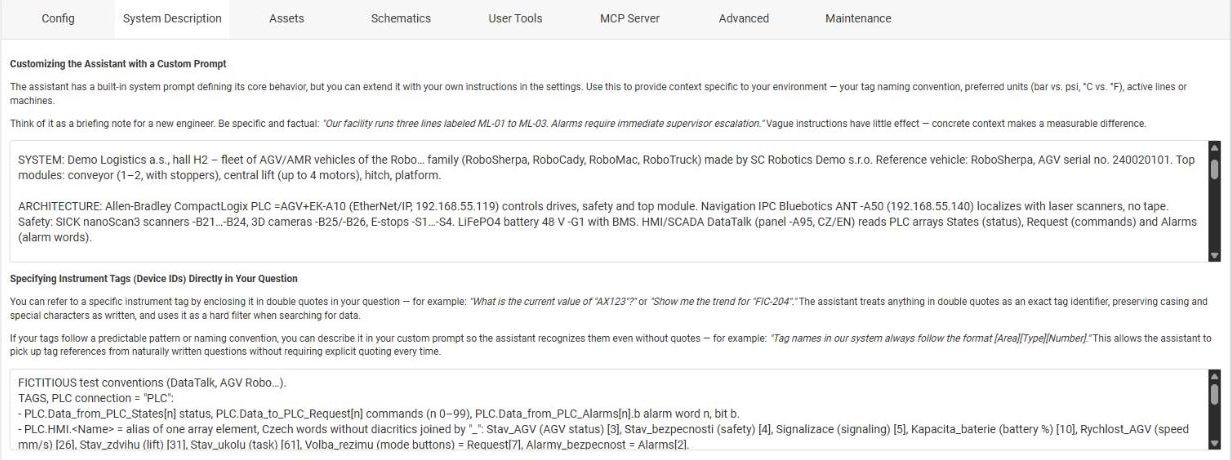
The assistant has built-in instructions. Here you extend them with the knowledge of your installation. The tab has two fields:
Customizing the Assistant with a Custom Prompt — a briefing note for the assistant, as you would write it for a new engineer: what the plant does, which lines and machines it has, preferred units (bar or psi, °C or °F), escalation rules. Be specific and factual — “Our facility runs three lines labeled ML-01 to ML-03. Alarms require immediate supervisor escalation.” Vague instructions have little effect.
Specifying Instrument Tags (Device IDs) Directly in Your Question — users can name a tag in double quotes (“What is the current value of “AX123”?”); the assistant then uses it as an exact identifier. If your tags follow a naming pattern, describe it here — “Tag names in our system always follow the format [Area][Type][Number].” — and the assistant recognizes tag names even without quotes.
The screenshot shows the description of a test AGV vehicle. It works well because it covers:
- The system — what the machine is, its type, serial number and modules.
- The architecture — the PLC, the IPC and the safety devices with their device identifiers (for example -B21…-B24 for the safety scanners).
- How to read the data — what the bits of a status word mean, how the alarm codes map to the PLC alarm words.
- Answer rules — for example always give the alarm code and the affected device, start safety alarms with a safety note, never recommend bypassing safety devices, if you do not know, say so.
- Escalation and units — who to call for which alarm, which units the plant uses.
In the second field: the naming convention of the tags and device identifiers, with a few example questions.
Assets
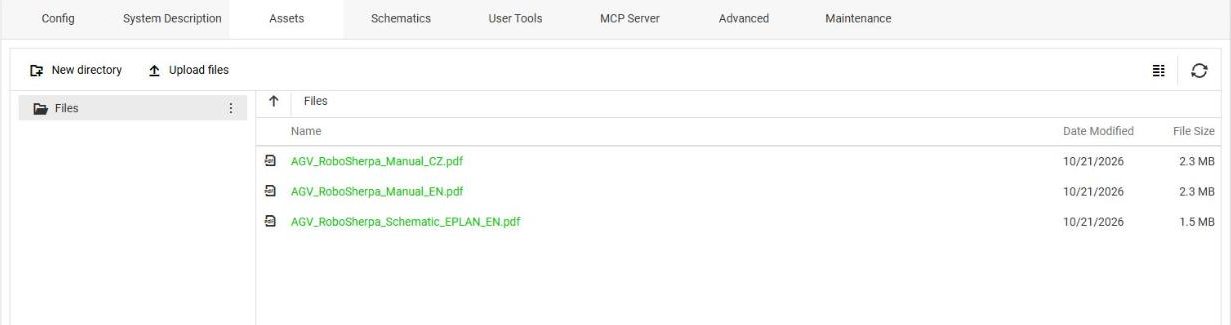
Documents the assistant searches when it answers: manuals, operating and maintenance instructions, specifications. New directory creates a folder, Upload files uploads one or more files. The list shows Name, Date Modified and File Size.
The assistant works with the text of the documents. Scanned PDFs without a text layer give poor results — enable Digitalize docs using Docling plugin in the Config tab for them.
Schematics
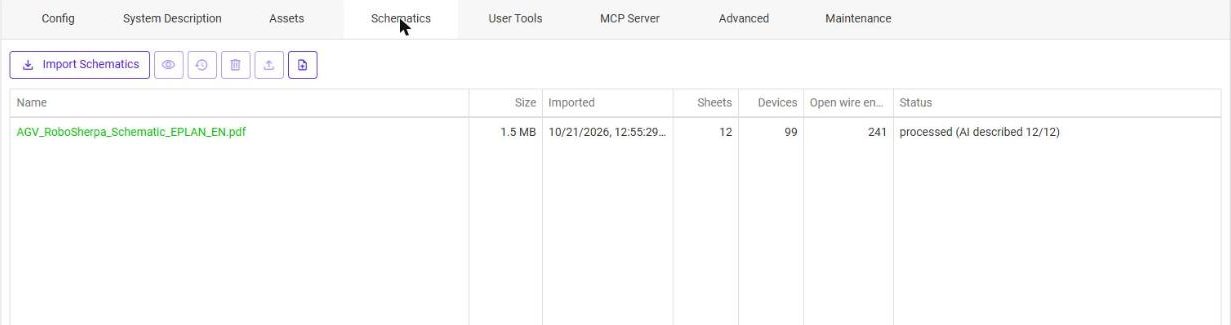
Electrical schematics of the machine, exported from EPLAN or another CAD tool as PDF. Import Schematics uploads a schematic; the module processes it and the list shows its Name, Size, date Imported, number of Sheets and Devices, the number of Open wire ends and the processing Status.
| Button | Function |
|---|---|
| Open | Shows the processed schematic. |
| Process again | Processes the schematic once more. |
| Delete | Removes the schematic. |
| Export processed schematic (zip) | Saves the processed schematic, for example to move it to another installation. |
| Import exported schematic (zip) | Loads a schematic exported from another installation without processing it again. |
User Tools
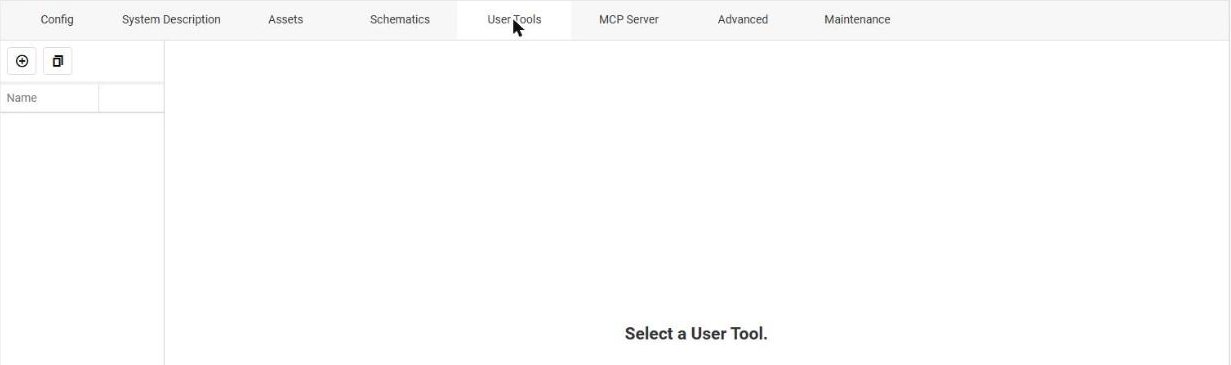
Custom tools the assistant is allowed to call — they extend what it can do beyond answering questions. Add a tool with +, enter its name and save it; select a tool in the list to edit it. The second button creates a copy of the selected tool.
Dates and times in user tools
When a user tool returns dates or times, use a format the model reads without mistakes:
| Value | Format | Example |
|---|---|---|
| A short time, for example today at 12 PM | Local time, 24-hour clock | 12:00 |
| A date and time | ISO 8601 — YYYY-MM-DDTHH:mm:ssZ | 2026-10-22T10:00:00Z |
The Z at the end means UTC. Uniform formats help the model to compare times correctly, for example when it looks for alarms that occurred before a value changed.
MCP Server

When Enable is on, external AI agents — such as Claude or other assistants based on large language models — can connect to the system through the MCP server and work with its real, up-to-date data. Require OAuth authentication protects the access with OAuth.
The MCP server is available at the address of the DataTalk server followed by /mcp:
https://<your-datatalk-server>/mcpUse http:// instead when the server does not run on HTTPS. Enter this address as the URL of the MCP server in the AI agent you want to connect (for example Claude Desktop or Claude Code). With Require OAuth authentication on, the agent has to authenticate with OAuth before it gets access to the data.
Advanced
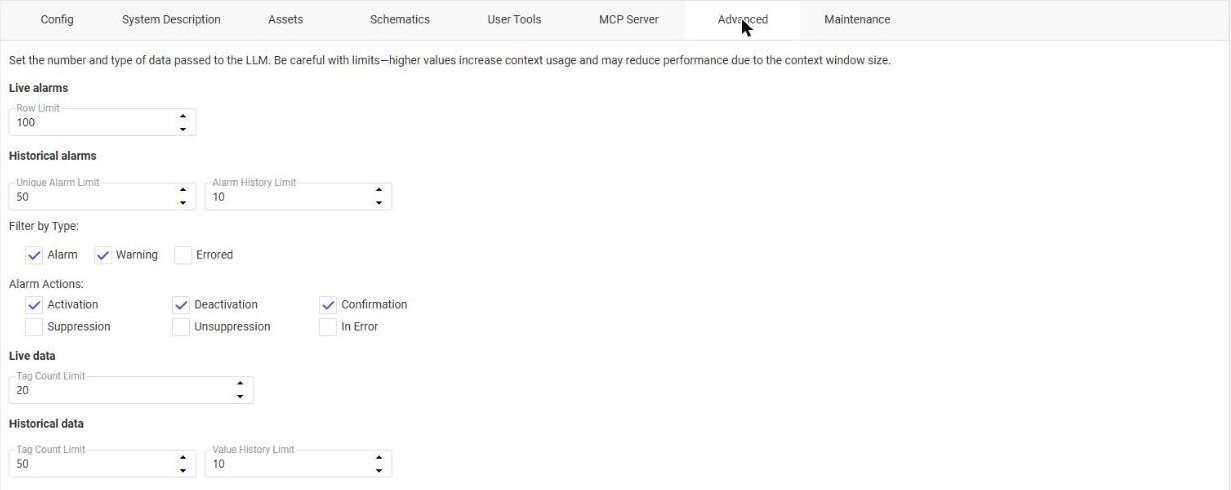
Sets how much data is passed to the model with each question. Be careful with limits — higher values increase context usage and may reduce performance due to the context window size.
| Section | Setting | Value in the screenshot |
|---|---|---|
| Live alarms | Row Limit — active alarms passed to the model | 100 |
| Historical alarms | Unique Alarm Limit — different alarms from the history | 50 |
| Alarm History Limit — history records per alarm | 10 | |
| Filter by Type — Alarm, Warning, Errored | Alarm, Warning | |
| Alarm Actions — Activation, Deactivation, Confirmation, Suppression, Unsuppression, In Error | Activation, Deactivation, Confirmation | |
| Live data | Tag Count Limit — tags with their current values | 20 |
| Historical data | Tag Count Limit — tags with history | 50 |
| Value History Limit — historical values per tag | 10 |
Raise a limit only when the assistant is clearly missing data, and check that the context window of the model is large enough. With cloud providers higher limits also mean higher costs per question.
Maintenance

The module keeps processed versions (embeddings) of documents, tags and alarms for searching. The Maintenance tab manages them:
- Update All Embeddings — processes all documents, tags and alarms again, for example after changing the embedding model.
- Remove Document Embeddings — deletes the processed documents.
- Remove Tag & Alarm Embeddings — deletes the processed tags and alarms.
After removing embeddings the assistant cannot search the documents or data until they are processed again with Update All Embeddings.