
AI Assistant
The chat panel of the AI Module — conversations, Chat Mode and Agent Mode, document search, voice, root cause analysis of alarms and export of a conversation to PDF.
On this page
The AI Assistant is a chat panel available everywhere in the application. Ask a question in plain language and the assistant answers from the live and historical data of the system, its alarms and the uploaded documents — see What AI Expert Can Do.
Opening the assistant
Click the chat icon in the top bar, next to the alarm counter. The assistant opens as a window above the current screen. The expand button in its top-right corner enlarges it to full screen, × closes it.
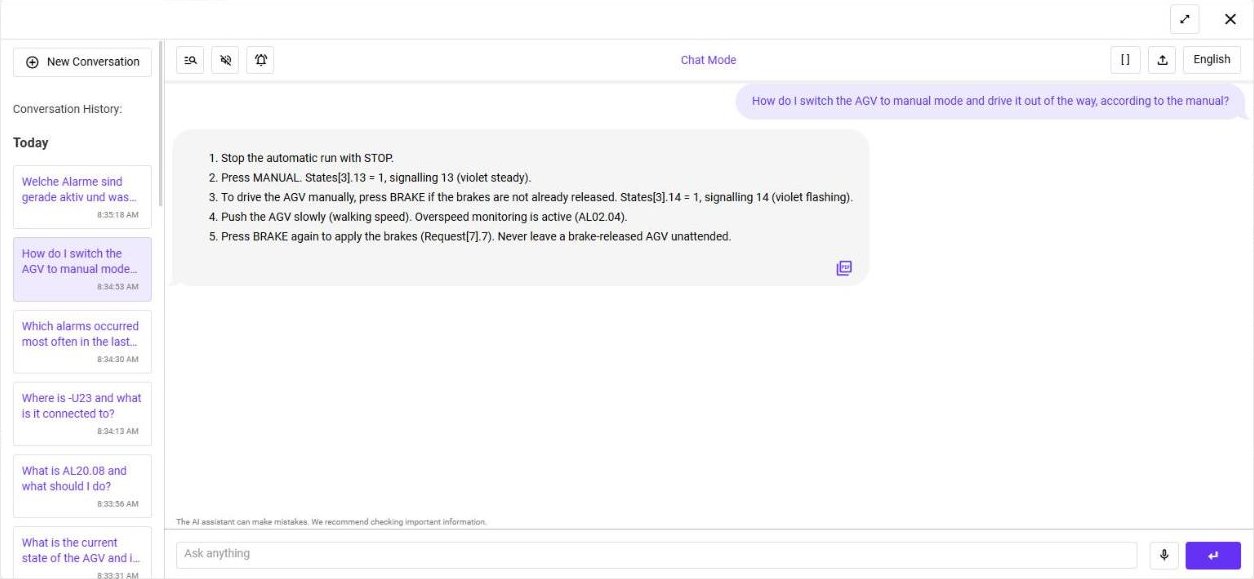
If the module is not enabled, the panel shows AI is not enabled. Please check the AI settings. — enable it in AI Expert Settings.
Asking a question
Type the question into Ask anything at the bottom and press Enter or the send button. The answer appears in the conversation; follow-up questions keep the context of the conversation.
Click the microphone to speak the question instead of typing it (requires Use for Speech to Text in the settings).
| Ask about | Example |
|---|---|
| Active alarms | What alarms are currently active? |
| Alarm history | Which alarms occurred most often in the last 24 hours? |
| Tag values | What is the current value of “TIC-101”? |
| Documentation | How do I fix error 32490 on engine 5 according to the documentation? |
A tag name in double quotes — “FIC-204” — is treated as an exact tag identifier.
Asking in your own language
You do not have to ask in English. Ask in your own language — Czech, German, Polish, Slovak or any other language the selected AI model understands — and the assistant answers in the same way as in English.
The language of the answers follows the language selected with the language button in the toolbar (for example English, Deutsch or Čeština). This button switches the language of the whole application. With English selected the assistant understands a question asked in German or Czech but answers in English; select your language to get the answers in it, too.
To get each answer in the language of its question regardless of the selected language, add an instruction to the System Description, for example Answer in the language of the question. Large models follow it reliably; small local models may ignore it.
How well the assistant handles your language depends on the AI model. Cloud models (OpenAI, Claude, Gemini) work well in dozens of languages. Small local models understand other languages worse and may answer less accurately — with Ollama choose a multilingual model, for example from the qwen3, gemma3 or llama3.1 families. Tag names and alarm texts are always shown as they are defined in the project.
At the bottom of the panel the assistant reminds you: The AI assistant can make mistakes. We recommend checking important information.
Conversations
New Conversation starts an empty conversation. The Conversation History on the left lists previous conversations, grouped into Today and Older; click one to open it again. Each user sees their own conversations; an administrator can review the conversations of all users in AI Conversations.
Toolbar
| Button | Function |
|---|---|
| Search (magnifier) | Switches to Search Mode — a search in the uploaded documents, see below. |
| Speaker | Reads the answers aloud (requires Use for Text To Speech). |
| Root cause analysis (alarm icon) | Opens the analysis of alarms — see below. |
| [ ] | Hides supplementary text in square brackets in the answers, for example references to the sources of the answer. |
| Export | Exports the conversation to a PDF. |
| Chat Mode / Agent Mode (label in the middle) | Shows the current mode; click it to switch — see below. |
| Language (e.g. English) | The language of the application and of the answers — see Asking in your own language. |
Chat Mode and Agent Mode
Click the label in the middle of the toolbar to switch between the two modes:

| Chat Mode | Agent Mode | |
|---|---|---|
| How it works | Collects the data relevant to the question once and answers from it | Searches deeper and analyses more thoroughly — it looks up the data, alarms, documents and schematics in several steps before it answers |
| Best for | Quick questions — a value, an alarm, a passage from the manual | Complex questions — finding the cause of a fault, comparing several sources, questions the Chat Mode answered only partly |
| Speed | Fast | Slower — every step takes time |
| Costs | Fewer tokens | Many more tokens — with cloud providers every question costs more |
| Hardware (Ollama) | Runs on the recommended hardware | Much more demanding — every step is another run of the model |
An example from a test project: asked Where is -U23 and what is it connected to?, a small local model answered in Chat Mode after 4 seconds that it had no information about the device. In Agent Mode it searched the electrical schematic and after 51 seconds found the lift drive 3 with its 48 V supply, its CANopen node and its alarms.
Ask in Chat Mode first. Switch to Agent Mode when the answer is not deep enough or the question needs several sources combined. With a local model plan for strong hardware — see Running AI Locally.
Search Mode
The Search button (magnifier) switches to Search Mode — a search in the uploaded documents. The assistant lists the Search Results — the matching passages of the documents — and keeps a separate Search History. Click the button again to return to the conversation.
Sources of the answer
Icons under an answer show which data the assistant used. Click an icon to check the answer against its source; the back arrow returns to the conversation.
| Icon | Opens |
|---|---|
| Alarm | Alarms in date and time of the question — the alarms as they were when you asked, with search and filter. |
| Chart | Charts — the trend of the tags the answer is based on, for the time of the question. The chart can be exported or printed. |
| Document | Documents — the documents the answer comes from, in a viewer. Choose the document and page through it. |
| Schematic | Schematics — the electrical schematic in a viewer. The numbered buttons jump to the sheets the answer refers to. |
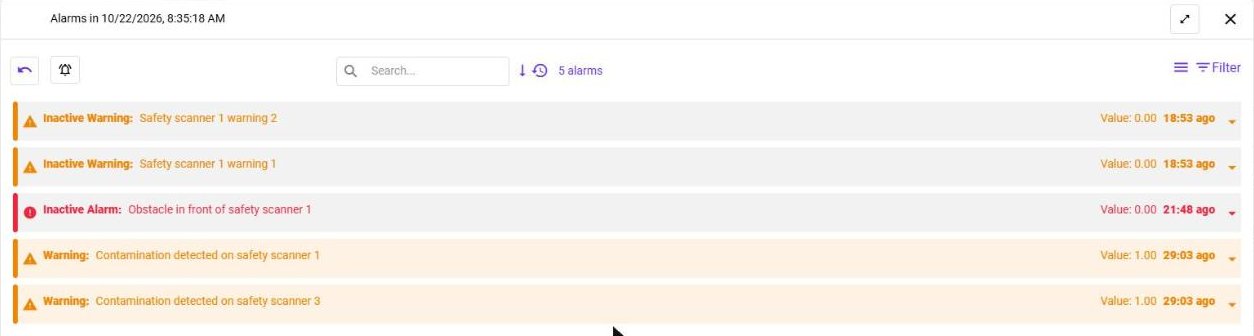
Root cause analysis
The Root cause analysis button opens the Root cause analysis of alarms window:
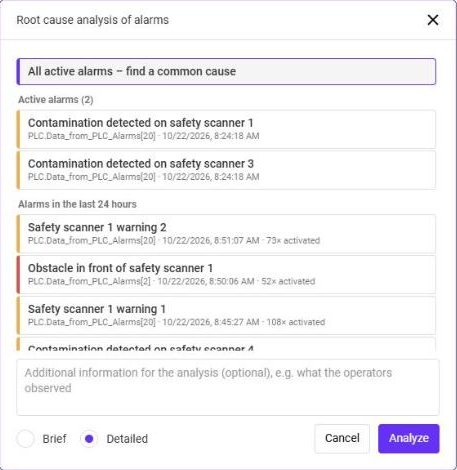
Select All active alarms – find a common cause, or a single alarm from the list. The window lists the Active alarms and the Alarms in the last 24 hours, each with its tag, time and — for the history — the number of activations (for example 12× activated).
Describe what the operators observed, for example The line stopped after the material change. The more context, the better the analysis.
Brief for a short summary, Detailed for a full analysis.
Click Analyze. The question and the result appear in the conversation.
The result contains a summary, the most probable root cause with its confidence, the sequence of events, the evidence from the alarm history and live data, the causes that were ruled out and recommended actions:
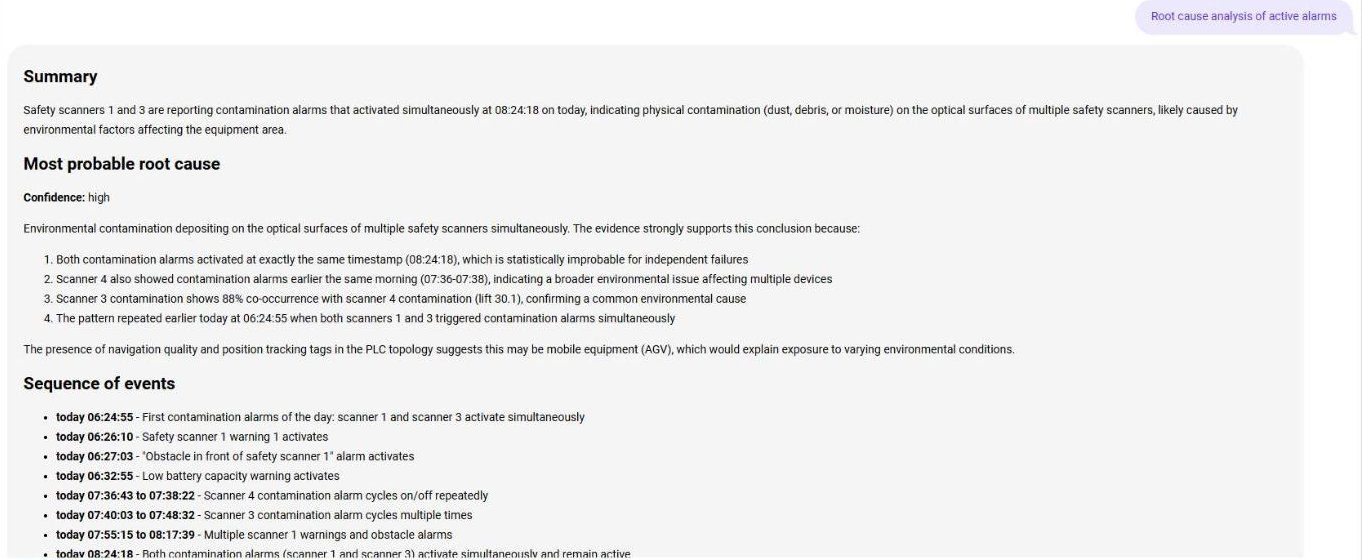
The analysis lets the model call tools, so it needs a model with tool support — a cloud provider, or an Ollama model with the tools label.
The analysis is the most demanding function of the assistant. With a small local model on ordinary hardware it can take very long — in our test a 7B model on a laptop graphics card with 8 GB worked for 29 minutes, got stuck repeating the same tool call and found no cause, while all other questions waited in the queue. For root cause analysis use a cloud provider, or a local AI server at least at the Recommended level — see Running AI Locally.
Rating answers
When Enable AI reply rating is on in the settings, users can rate the answers of the assistant. Administrators then filter the conversations by the number of stars in AI Conversations and see where the assistant needs better context or documents.