
What AI Expert Can Do
Live data, historical data, alarms, documentation, electrical schematics, root cause analysis, voice and integrations — what the AI assistant works with and what it needs.
On this page
The AI assistant combines several sources of information. For every question it collects the relevant data from the system, passes it to the AI model together with your system description and lets the model formulate the answer.
Live data
The assistant sees the current state of the system:
- Active alarms — which alarms are active right now, their messages and states.
- Current tag values — the live values of the tags in the project.
Examples:
- What alarms are currently active?
- What is the current value of “TIC-101”?
- Is pump 2 running?
Write a tag name in double quotes — “FIC-204” — and the assistant uses it as an exact tag identifier. If your tags follow a naming convention, describe it in the System Description and the assistant recognizes them even without quotes.
How many active alarms and live tags are passed to the model is set in the Advanced tab.
Historical data
The assistant also works with the history stored in the project:
- Alarm history — which alarms occurred, how often and when; filtered by type (alarm, warning, errored) and by event (activation, deactivation, confirmation…).
- Tag history — the logged values of tags, for example to describe a trend.
Examples:
- Which alarms occurred most often in the last 24 hours?
- How did the temperature in “TIC-101” develop this morning?
- How many times was the safety scanner warning activated today?
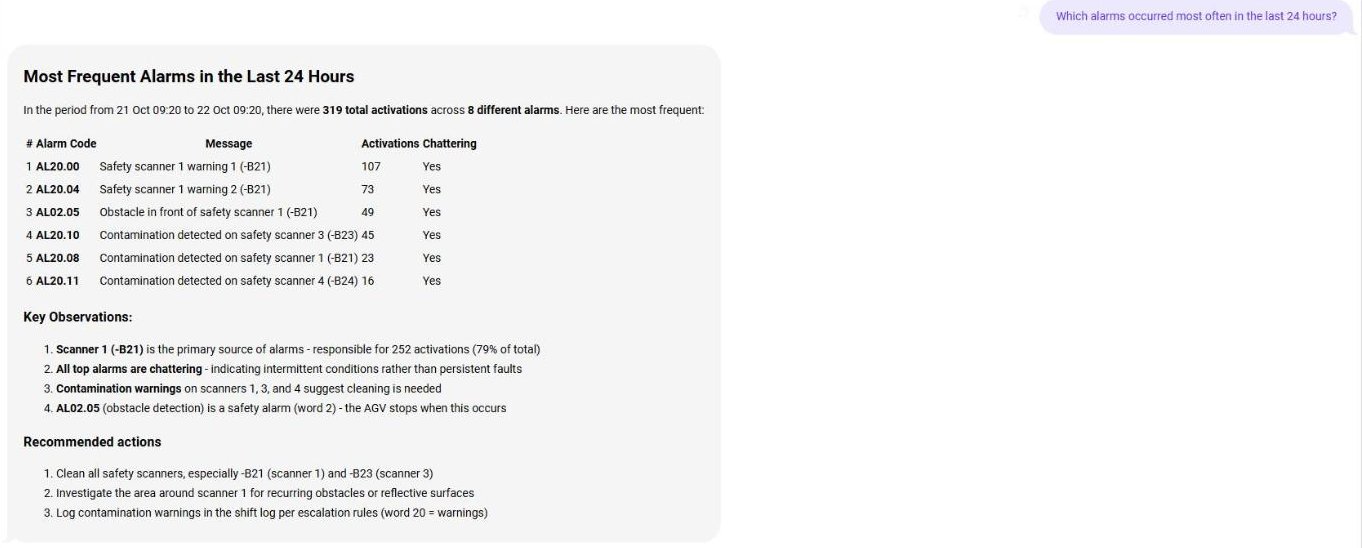
The amount of history (number of alarms, number of tags, number of values per tag) is limited in the Advanced tab, so that the request fits the context window of the model.
Only tags whose values are logged have a history the assistant can work with. Logging is enabled per tag in the Tag Database.
Documentation
Upload manuals, operating procedures, maintenance instructions or specifications in the Assets tab. When a question is likely answered by a document, the assistant searches the uploaded files and uses the relevant passages in its answer.
Examples:
- How do I fix error 32490 on engine 5 according to the documentation?
- What is the maintenance interval of the compressor?

In Search Mode the assistant searches the documents directly and lists the results — see Search Mode.
For scanned PDFs, tables and multi-column layouts enable Digitalize docs using Docling plugin in the Config tab (requires the running Docling plugin).
Electrical schematics
In the Schematics tab you import electrical schematics exported from EPLAN or another CAD tool as PDF. The module processes them — it counts the sheets, recognizes the devices and checks for open wire ends — so that the assistant can use the schematics when answering questions about the electrical equipment of the machine.
The schematic icon under an answer opens the schematic in a viewer, with buttons that jump to the sheets the answer refers to:
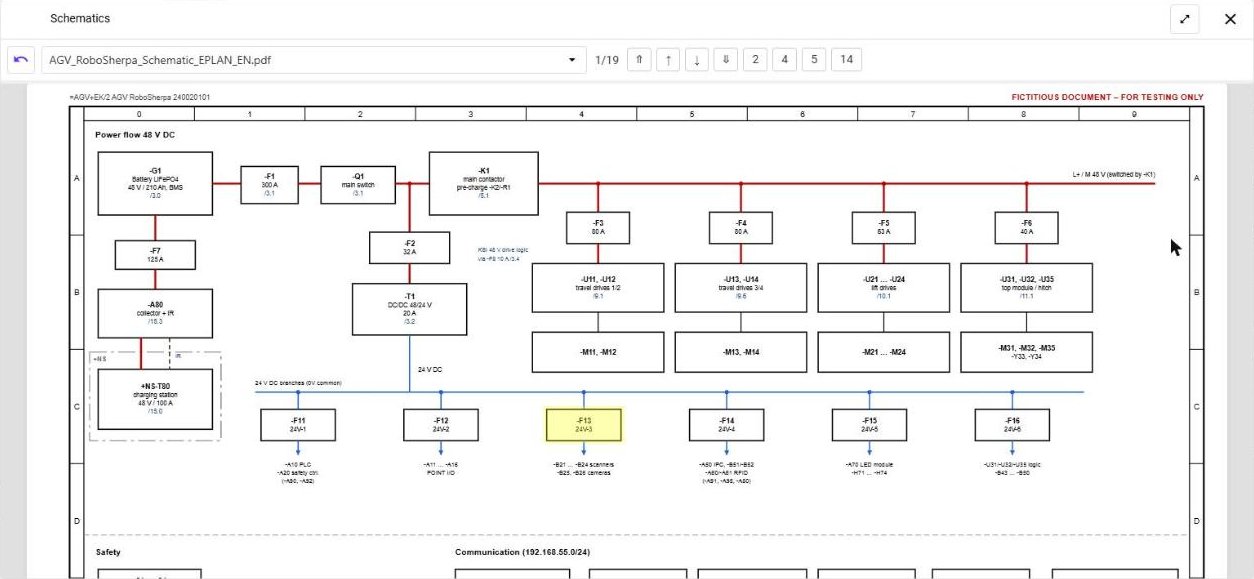
Questions about devices in the schematic often need several look-ups — ask them in Agent Mode.
Root cause analysis
Root cause analysis looks for a common cause of several alarms. You choose the alarms — all active alarms, or alarms from the last 24 hours — optionally describe what the operators observed, and the assistant analyses them in a brief or detailed answer. See AI Assistant.
Root cause analysis lets the model call tools to read data, so it needs a model with tool support. All cloud providers offer such models; with Ollama choose a model that carries the tools label in the library, for example llama3.1 or qwen3.
Deeper analysis in Agent Mode
In the default Chat Mode the assistant collects the relevant data once and answers. In Agent Mode it works in several steps — it searches the live and historical data, alarms, documents and schematics repeatedly and analyses the results before it answers. Use it for complex questions; it takes longer and uses many more tokens. See Chat Mode and Agent Mode.
Voice
With the OpenAI provider, questions can be spoken (speech to text) and answers read aloud (text to speech) in one of several voices. Both options are switched on in the Config tab.
Your own language
Questions do not have to be in English. The assistant understands questions in other languages — for example Czech, German or Polish — and answers in the language selected in the application. The quality depends on the model; cloud models and larger multilingual local models handle other languages best. See Asking in your own language.
Integration
- User Tools — custom tools the assistant is allowed to call, see User Tools.
- MCP server — external AI agents such as Claude connect to the system and work with its real, up-to-date data, see MCP Server.
What it needs
| For | You need |
|---|---|
| Any answer | AI Expert enabled, a provider and a model; for cloud providers an API key |
| Finding tags and documents by their content | An embedding model “required for processing text inputs”. With Ollama the application offers to download it when it is missing (internet connection required). With Anthropic a Voyage API key is used for embeddings. |
| Root cause analysis | A model that supports tools |
| Long histories and many tags | A larger context window — and a model that can handle it. With Ollama this means more memory on the graphics card, see Running AI Locally. |
Small local models answer briefly and may miss details; large cloud models give more complete answers — see the comparison of a local and a cloud model. The assistant can make mistakes — check important information.