
AI Assistant
The AI Assistent panel is a conversational interface embedded in the application. It lets operators and engineers ask plain-language questions about the system — active alarms, tag values, system status — and receive answers without leaving the application or navigating to external tools.
The panel is labelled “AI Assistent” in the application interface (one ‘s’). This matches the label shown in the app.
Opening the AI Assistent panel
Click the brain icon in the top bar. The icon is visible in View Mode. Clicking it opens the AI Assistent panel as an overlay on the current screen.
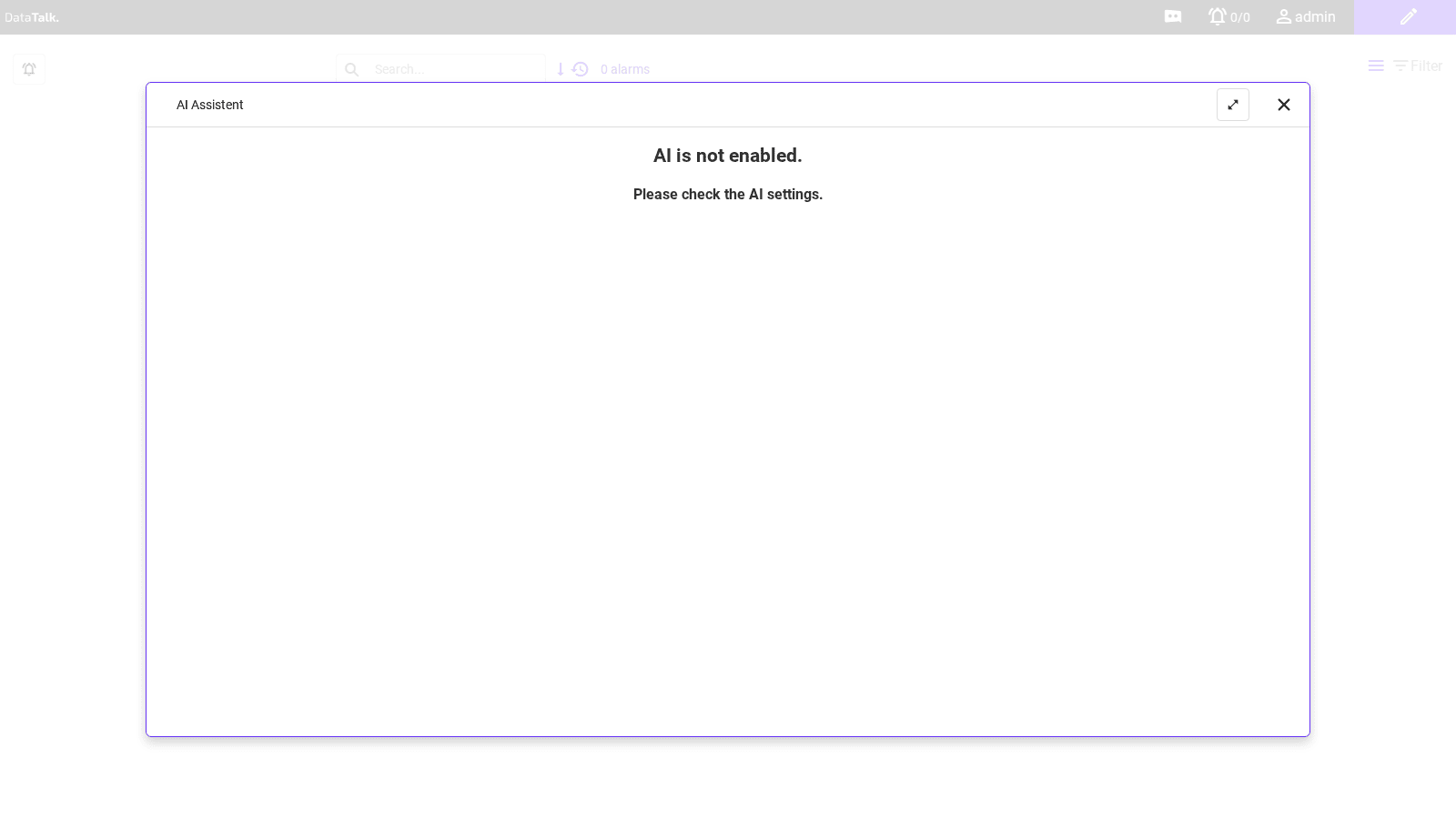
The panel has a maximize button to expand it to full screen and an × button to close it and return to the underlying view.
Panel states
When the AI is not enabled, the panel displays the message:
AI is not enabled. Please check the AI settings.
This means the AI module has not been configured yet, or the Enable toggle in Settings → AI is turned off. No questions can be submitted in this state.
When the AI is enabled and configured, the panel shows a chat interface. Type a question in the input field and press Enter or click the send button to submit it. The AI returns an answer based on the live system data and any documents uploaded in the Assets tab.
What you can ask
When the AI is configured, you can ask questions about the current state of the system in plain language. The AI has access to live alarm data and tag values from the connected devices.
Examples of questions that work well:
- What alarms are currently active?
- What is the current value of “AX123”?
- Show me the trend for “FIC-204”.
Enclose a tag identifier in double quotes when asking about a specific instrument — for example: "AX123" or "FIC-204". The AI treats anything in double quotes as an exact tag identifier and looks it up directly.
Enabling the AI assistant
If the panel shows the “not enabled” message, go to Edit Mode → Settings → AI and:
- Open the Config tab.
- Check the Enable checkbox.
- Select a Type (OpenAI or Ollama) and fill in the required fields (API key for OpenAI, or connection details for Ollama).
- Save the settings.
Return to View Mode and open the AI Assistent panel — the chat interface will be available.
Full configuration details are described in AI Settings.